Catalog session (mobile cataloging)
This is the mobile-first flow you use on the floor: pick a customer and job, snap photos, fill in basic info, advance to the next lot. Designed for one-handed use on a phone.
Starting a session
Open Catalog from the sidebar. You'll be asked for a customer and a job before anything else.
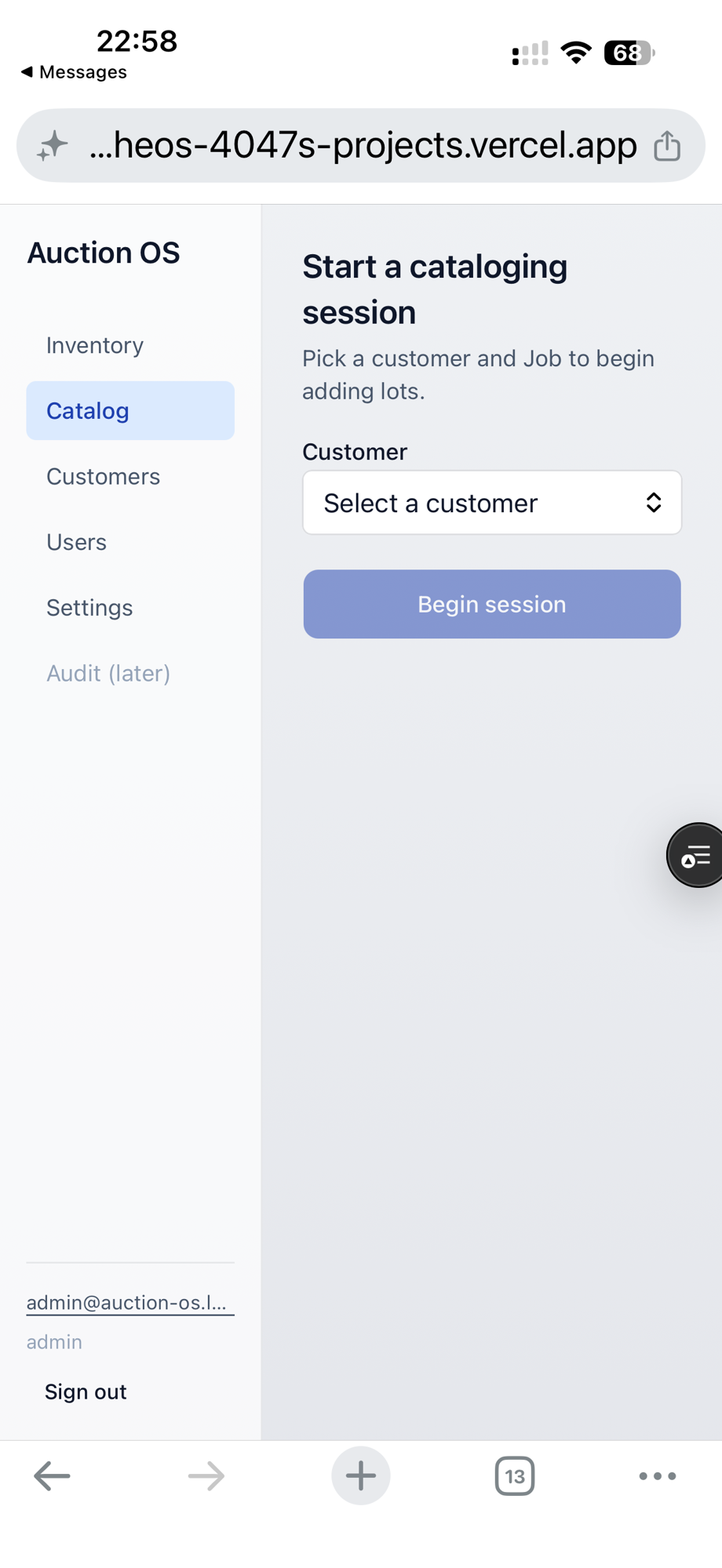
Pick the customer and job for the lots you're about to catalog. Both are required — you can't start a session without a destination.
Once a session is active and there's no lot in progress yet, you'll see this:
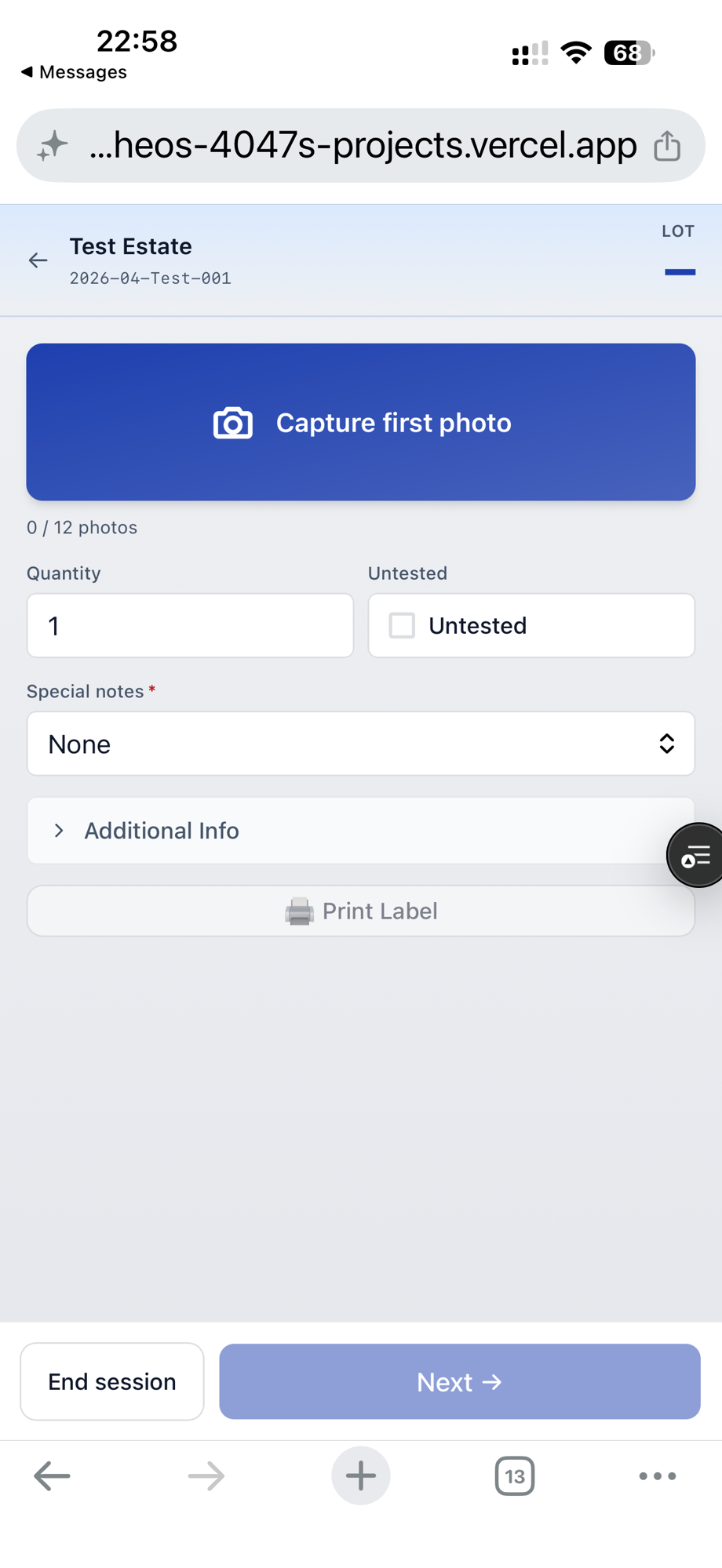
Hit Start lot to begin capturing.
The session screen
A lot in progress looks like this from the top:
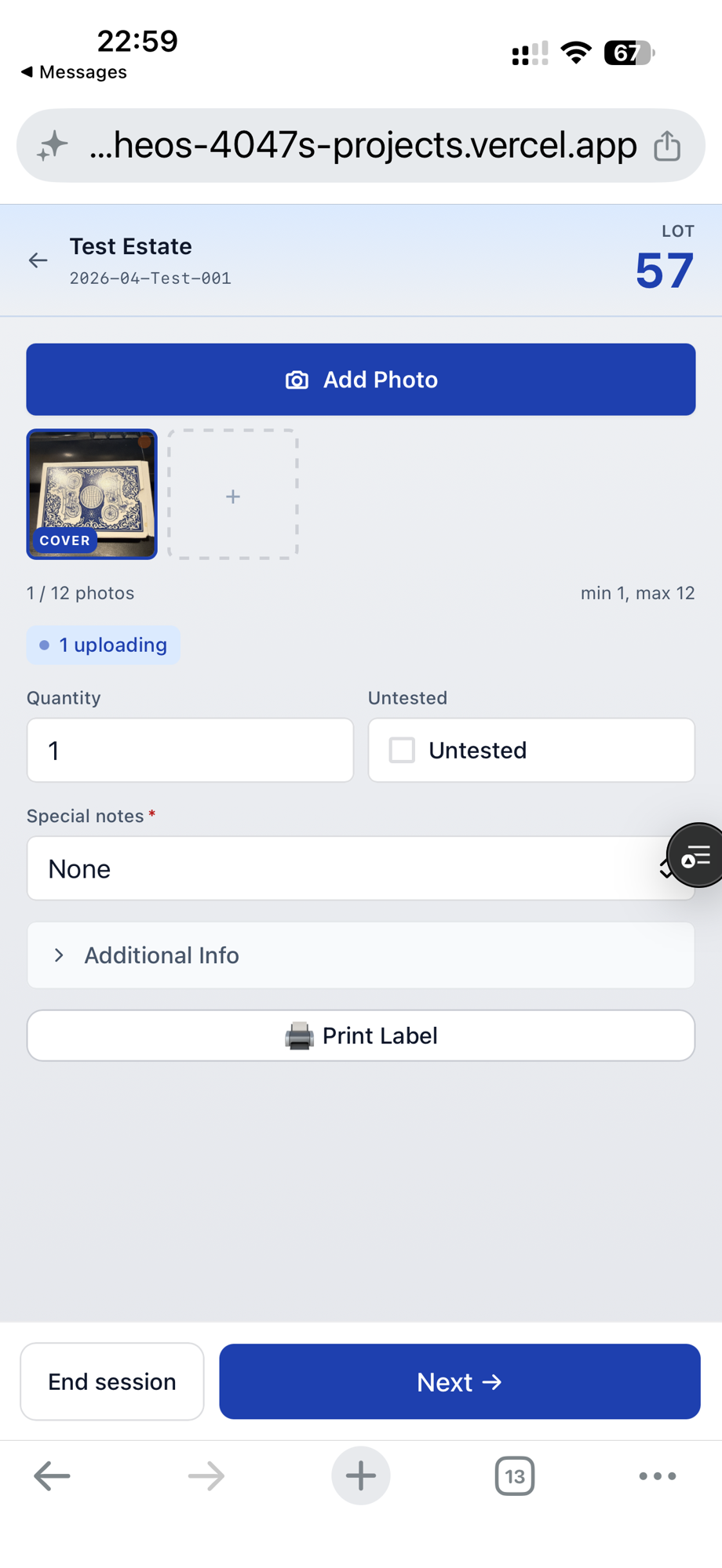
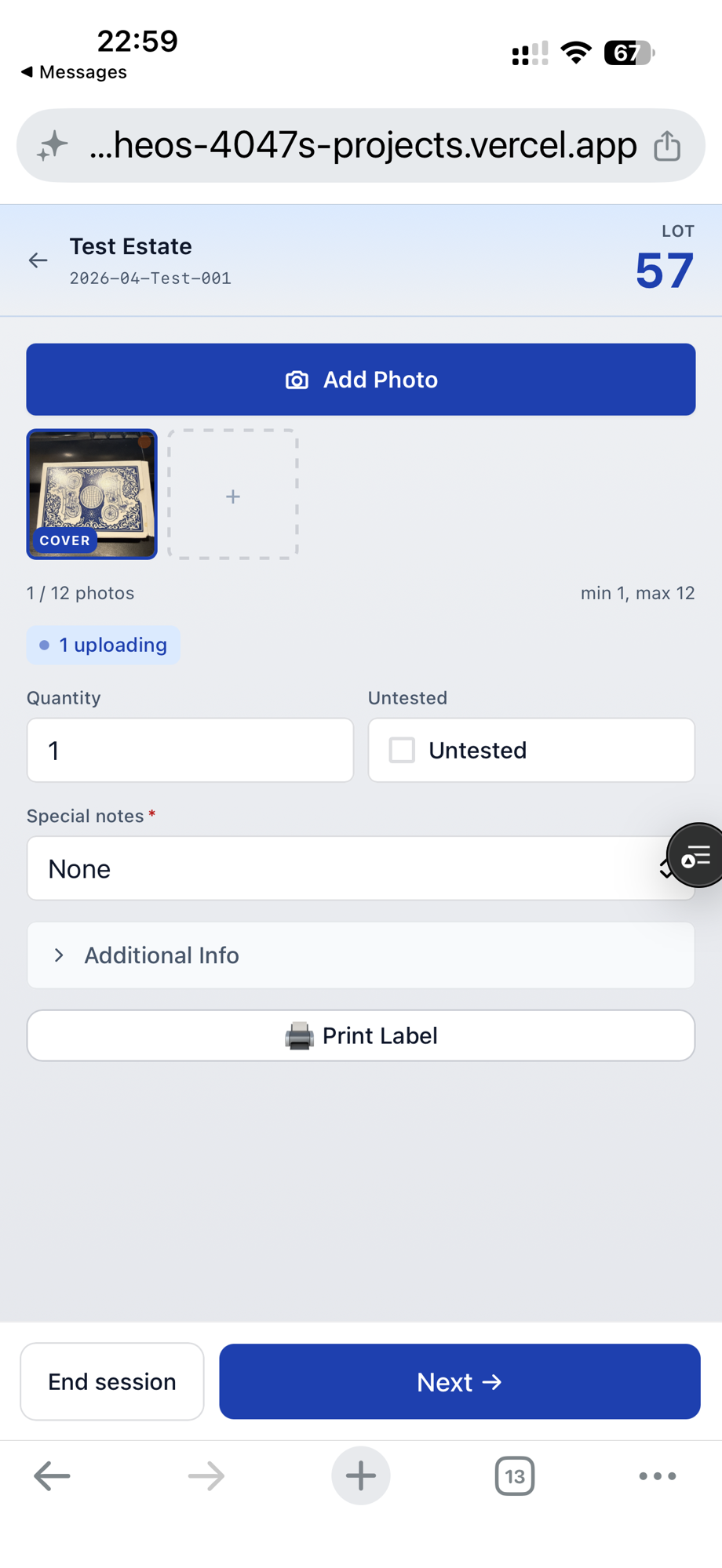
The header shows the customer and job you picked at the start, so you always know where the lot is going. Below that is the photo strip, followed by the always-visible fields and the Additional Info collapse.
Photos
Tap the camera button to add photos. They appear in the strip in the order you added them.
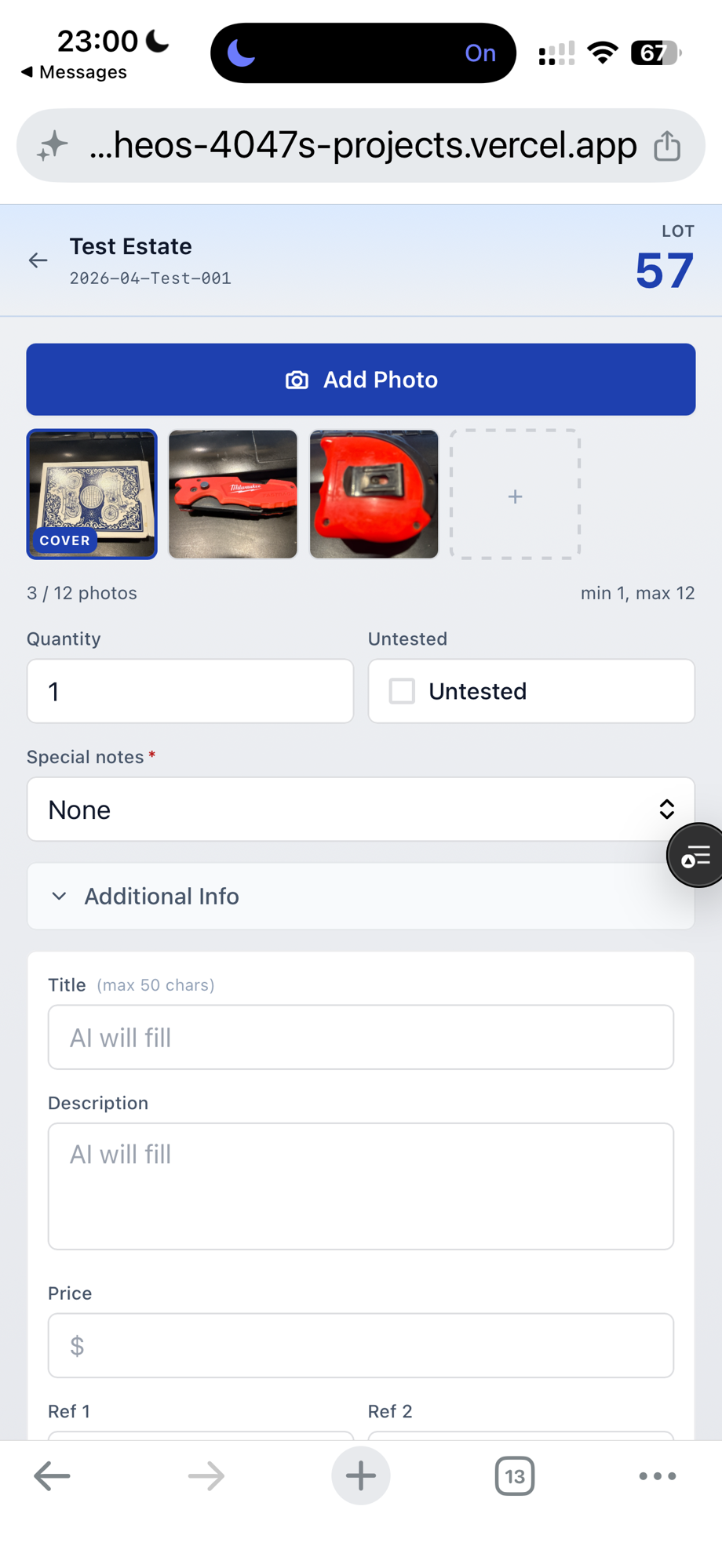
Each photo uploads in the background. The thumbnail will look blank for a second while the upload finishes — that's normal, give it a moment. You can keep working while uploads are in flight.
To remove a photo, tap it and hit the delete affordance.
Always-visible fields
Three things sit outside the collapse because they're either quick or important:
- Quantity — how many units the lot covers.
- Untested — checkbox; flip it on if the item hasn't been verified to work.
- Special Notes — dropdown with
None,TOOL ONLY,READ, andCLOTHING. If you pickCLOTHING, a size field appears.
Additional Info
The rest lives in a collapse so the screen stays short on a phone.
Closed:
Open:
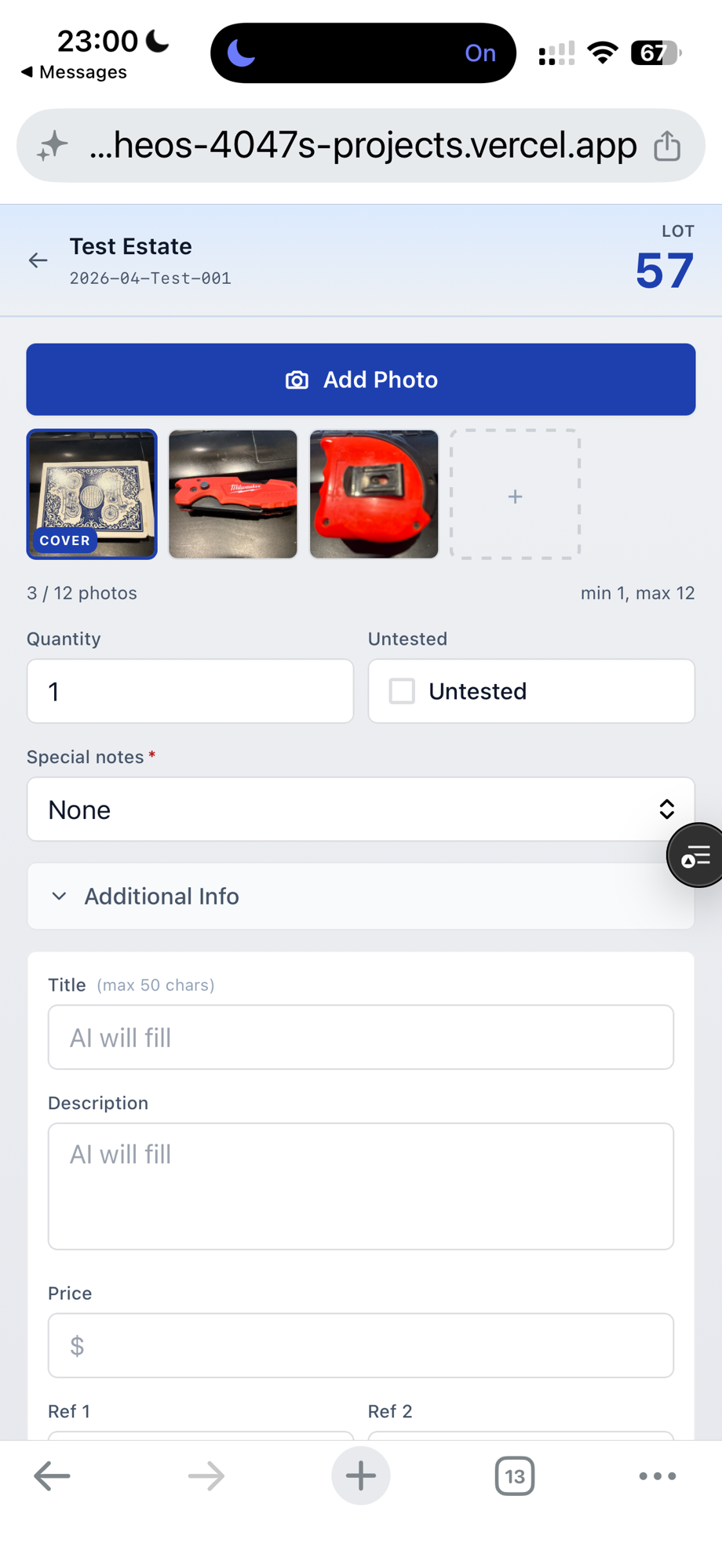
The fields are Title, Description, Price, Ref1, and Ref2. None of these are required at catalog time — leave them blank and AI will fill Title, Description, and Price for you on the next scheduled run (or trigger one manually from the lot detail later).
Advancing to the next lot
When you're done with the current lot, hit Advance. The lot saves, the session stays open, and a fresh lot starts under the same customer/job.
Discarding a lot
If you started a lot you didn't mean to, hit Discard.
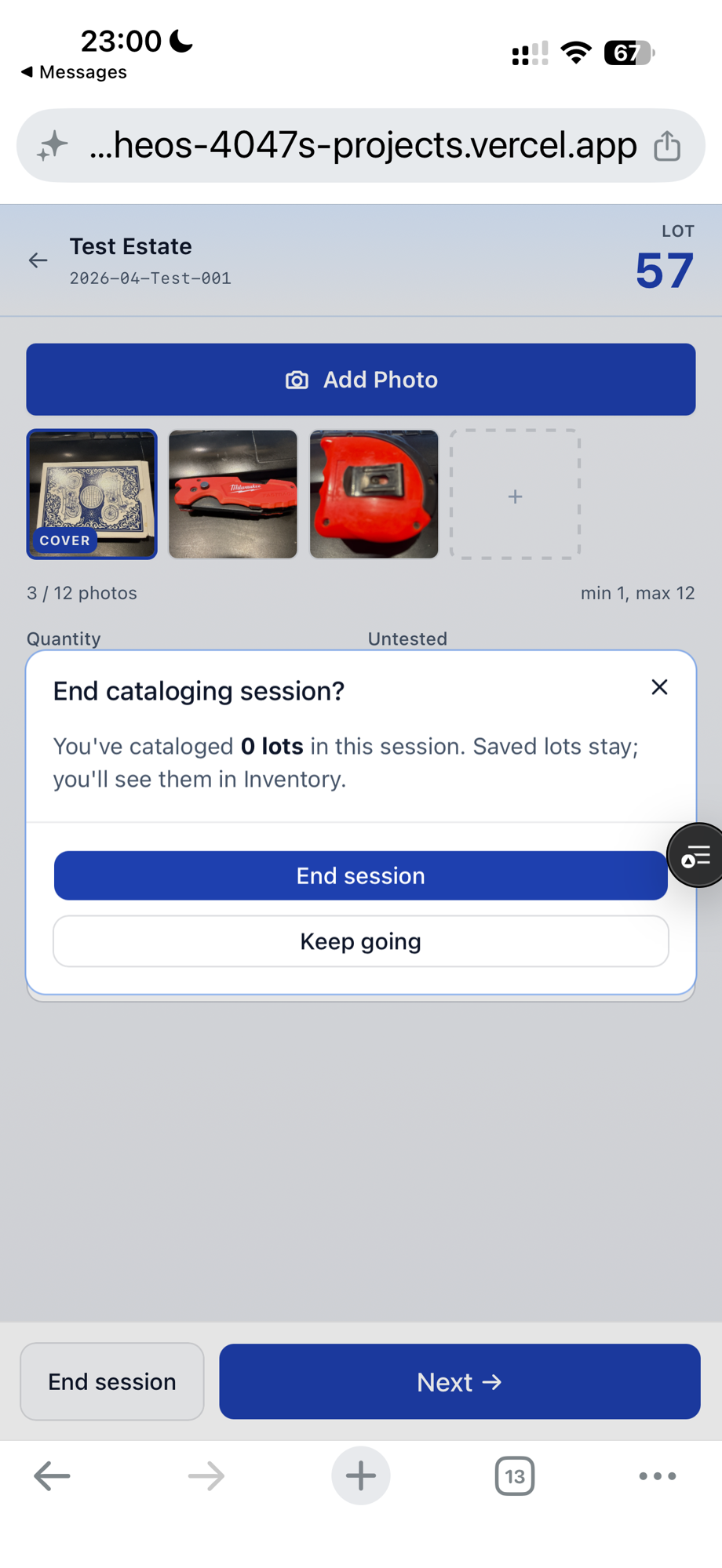
Discard wipes the in-progress lot — photos and fields go away, and nothing gets saved. The session itself stays active so you can start a new lot.
Pull-to-refresh and tab close
The current lot ID lives in the URL, so a pull-to-refresh on iOS Safari brings you right back to the same lot you were editing. Same goes for closing the tab and reopening it.
Field edits are autosaved continuously — to your phone first (almost instant) and to the server right after — so even an abrupt close loses at most the last fraction of a second of typing.
Coming back to an in-progress lot
If you walked away mid-lot, just open Catalog again. The session and the lot you were on will be there. No need to re-pick the customer or job.