Getting started
Sign in, find your way around, sign out. That's the whole page.
Signing in
Go to the app URL your admin sent you. You'll land on the sign-in screen.
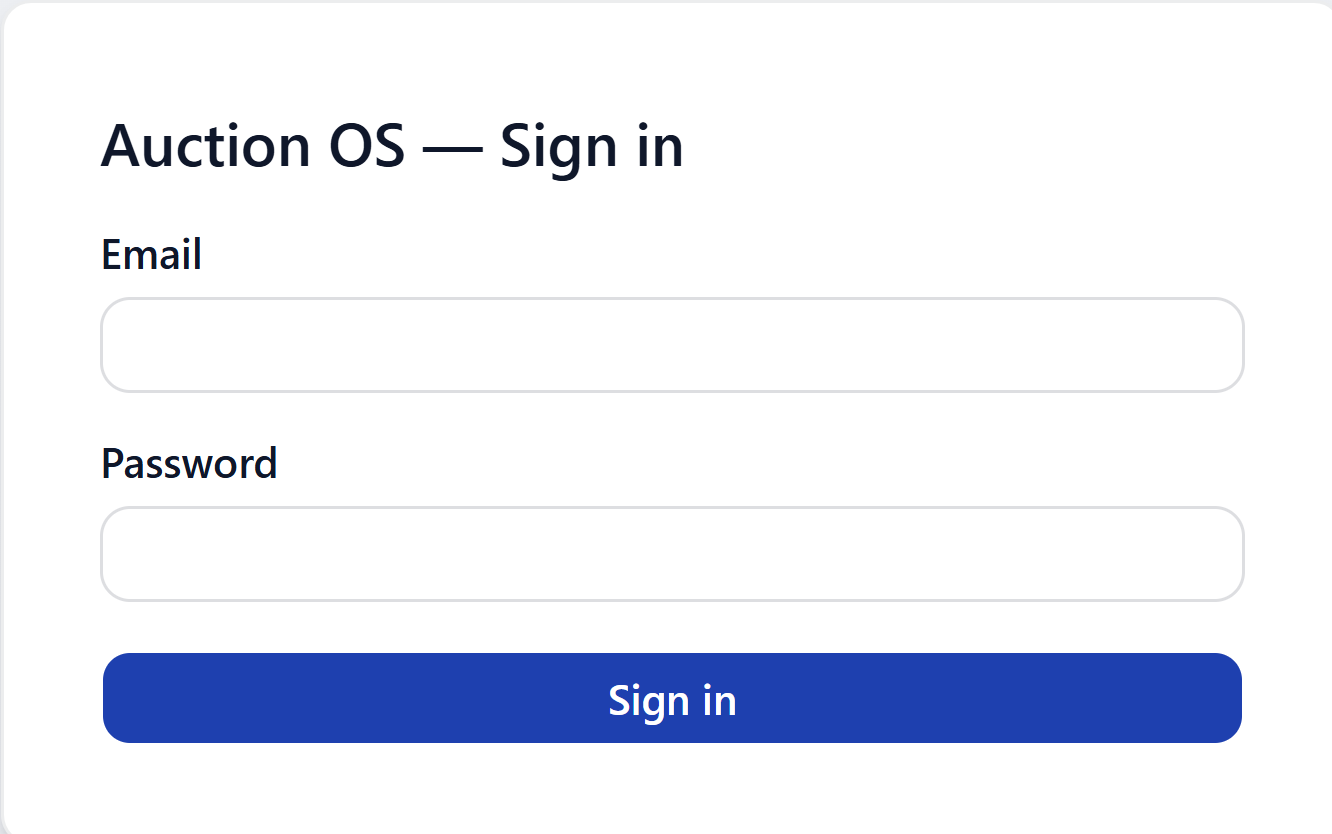
Enter your email and password and hit Sign in. That's it — there's no "forgot password" link in v1, so if you're locked out, ask an admin to reset you.
Wrong password
If your credentials don't match, you'll see this:
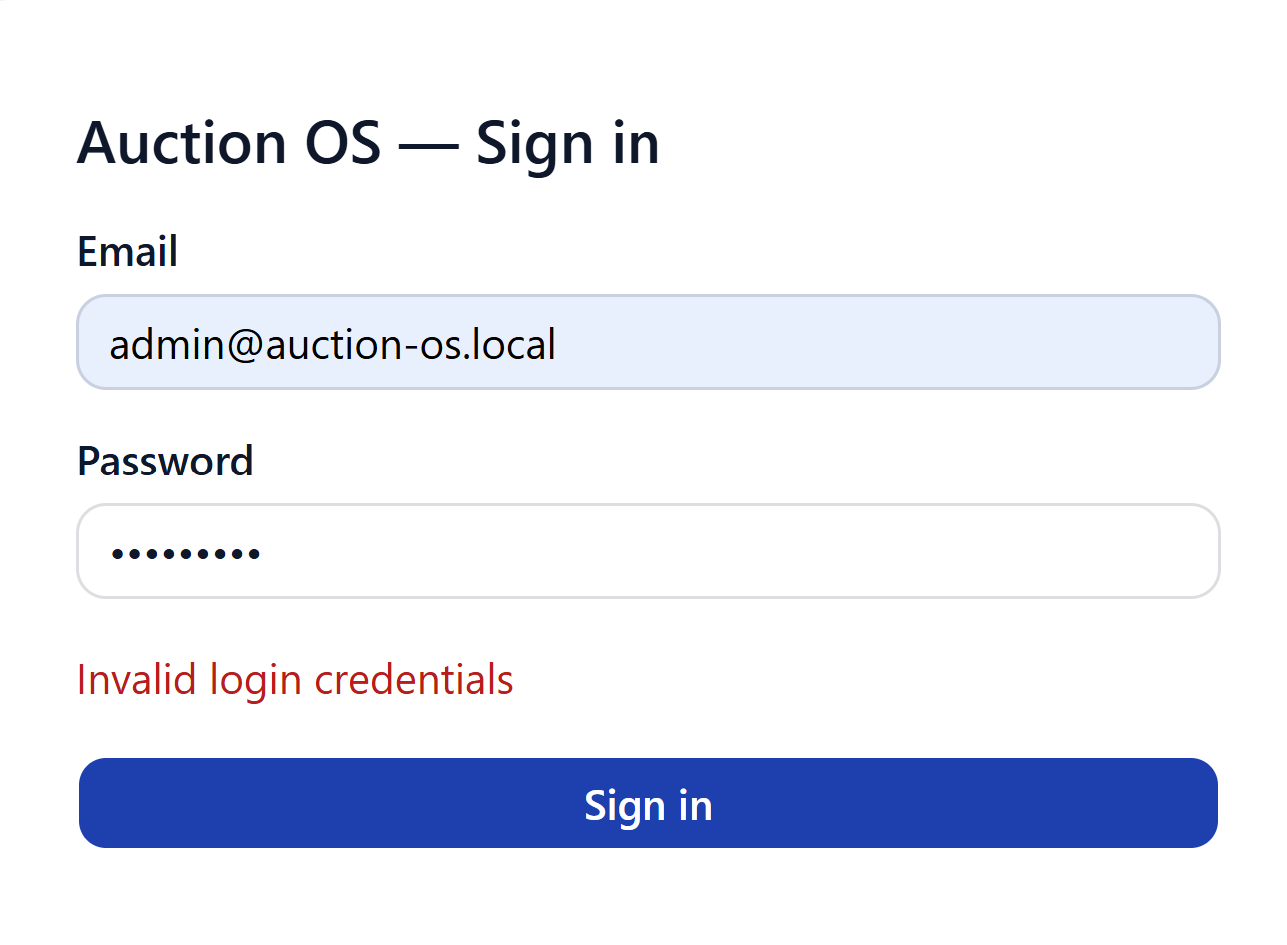
Double-check the email (most issues are typos) and try again.
Disabled account
If your account has been disabled by an admin, the sign-in form will look like this after you submit:
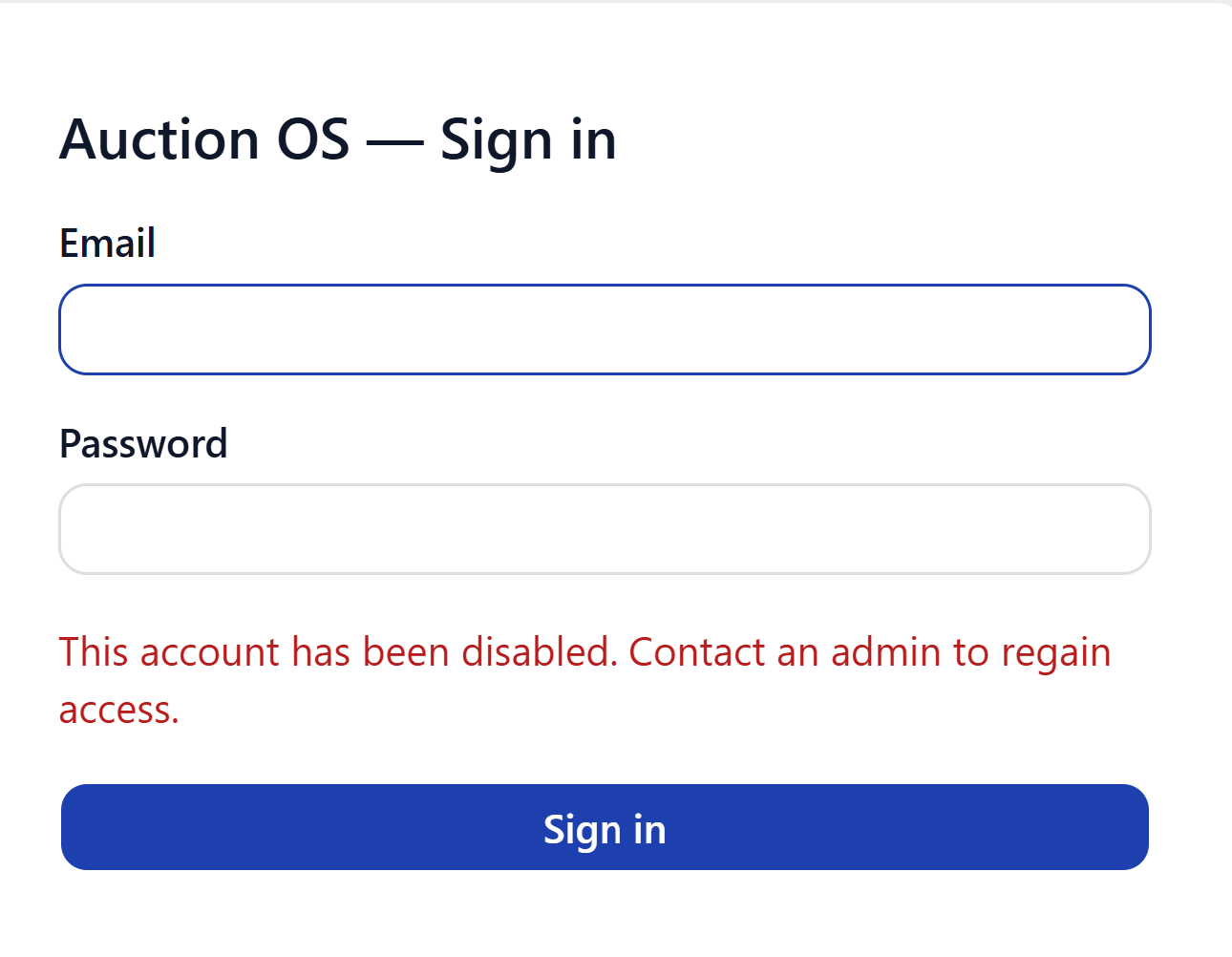
You can't get past this on your own — contact an admin to re-enable the account.
Where you land after sign-in
The app sends you to a different page depending on your role:
| Role | Lands on |
|---|---|
| Admin | /inventory |
| Office | /inventory |
| Warehouse | /catalog |
If you opened a deep link before signing in (say, someone shared a specific lot URL), the app honors that instead and takes you there once you're authenticated.
The sidebar
The left sidebar is your main navigation. What you see depends on your role.
Admin
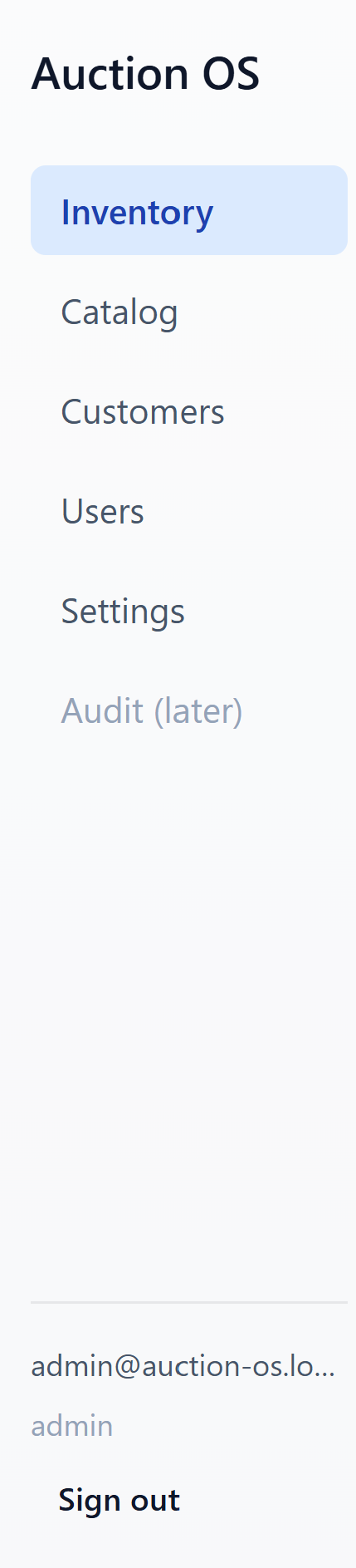
Admins see everything: Inventory, Catalog, Customers, Users, Settings, plus Audit (later) which is greyed out — that's a v2 feature, not broken.
Office
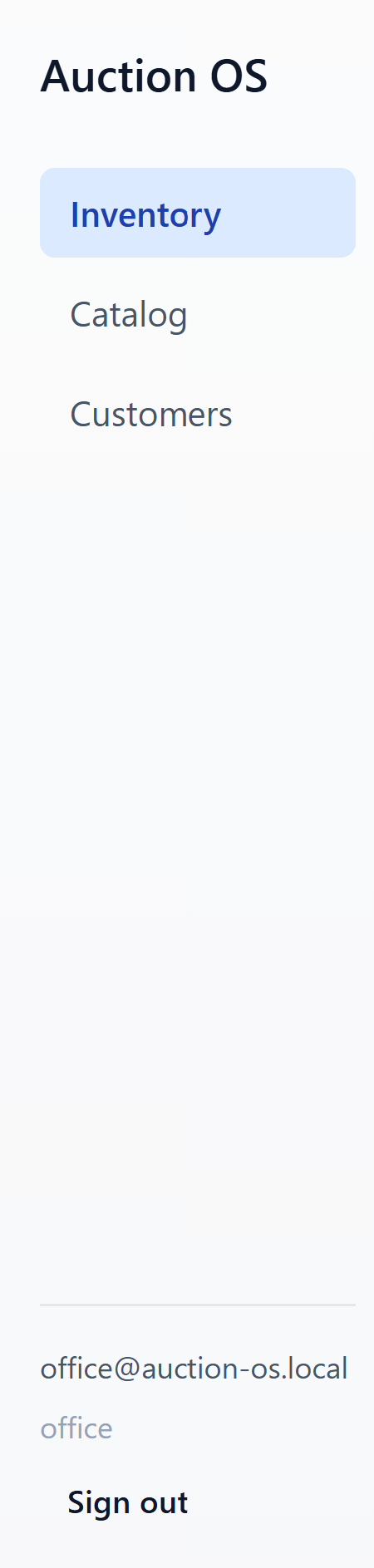
Office sees Inventory, Catalog, and Customers. No Users or Settings — those are admin-only.
Warehouse
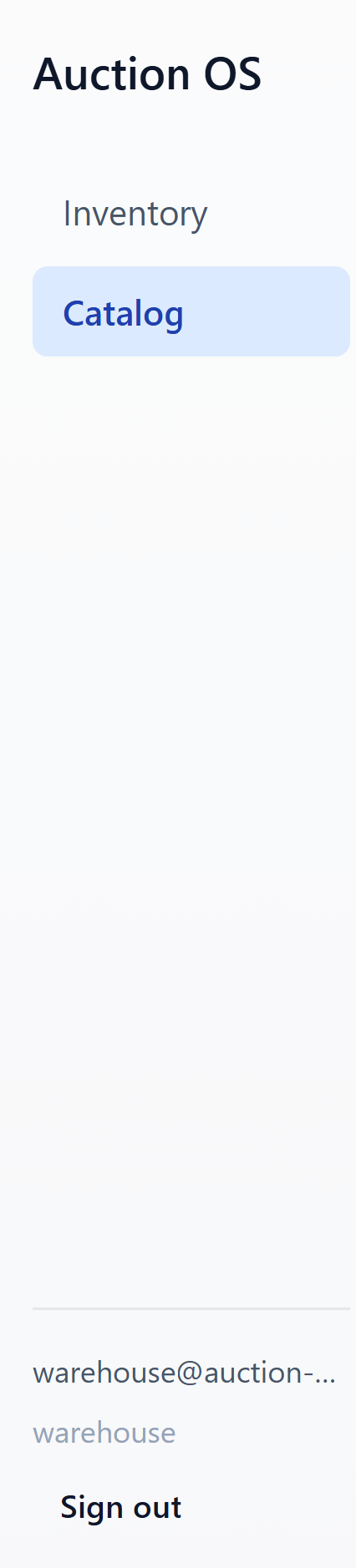
Warehouse sees Inventory and Catalog only. Catalog is the primary screen for the intake workflow on a phone or tablet.
Signing out
The bottom of the sidebar shows your email and role, with a Sign out button below. Hit it and you're back on the sign-in screen with a clean state — toasts and stale data don't leak across to whoever signs in next.
If you're switching users on the same machine, always sign out first
rather than just navigating to /login.