Settings
Admin only. Three panels: AI Schedule, Auction Platforms (read-only), and Users.
AI Schedule
Controls the scheduled AI generation cron.
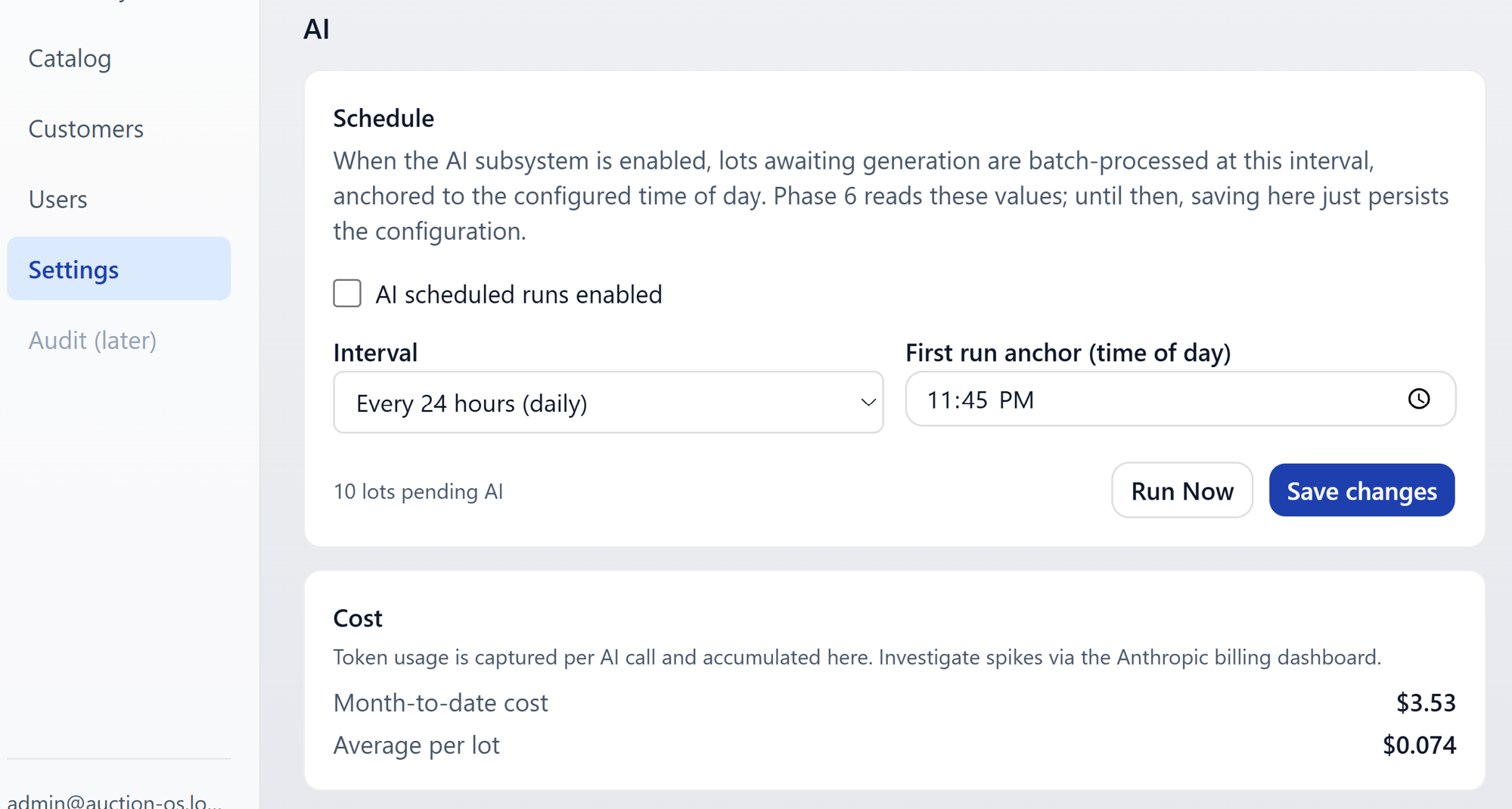
- On / off toggle — flip off if you want to pause scheduled runs entirely. Manual Run Now from a lot still works either way.
- Frequency — pick the interval in hours:
4,8,12, or24. Each tick processes any lot that's awaiting AI. - Time of day — anchor for the daily / multi-hour cadence.
Hit Save to commit. You can save these values even before the AI subsystem is fully active — they'll take effect once it is.
See AI generation for what each scheduled run actually does.
Auction Platforms
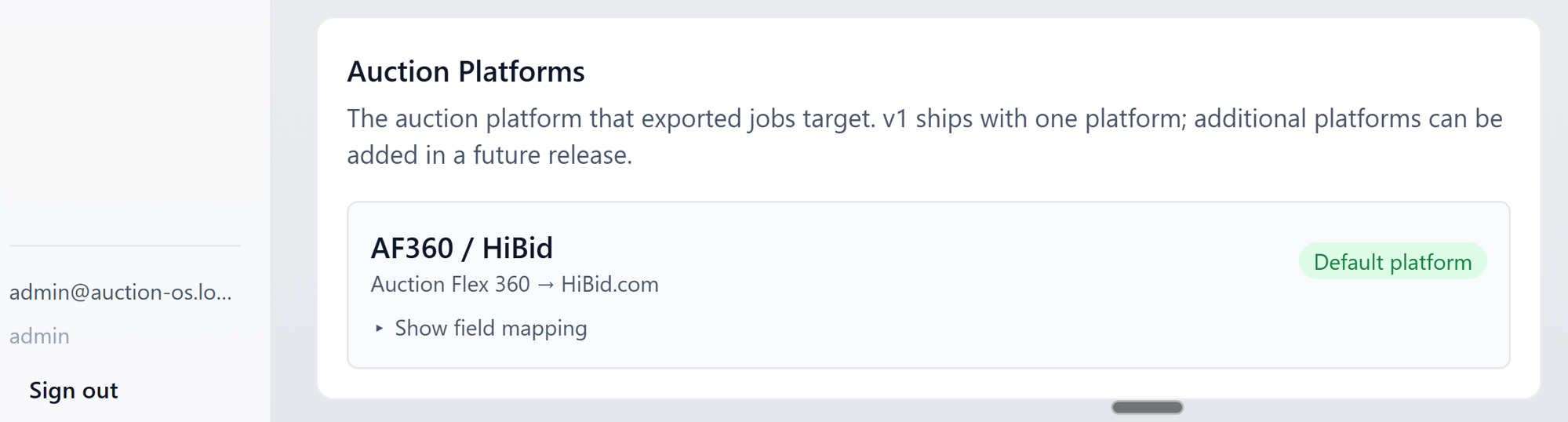
Read-only summary of the configured export platform (currently AF360 / HiBid). Changing the platform is code-only in v1 — talk to a developer if a different platform needs to be wired up.
Users
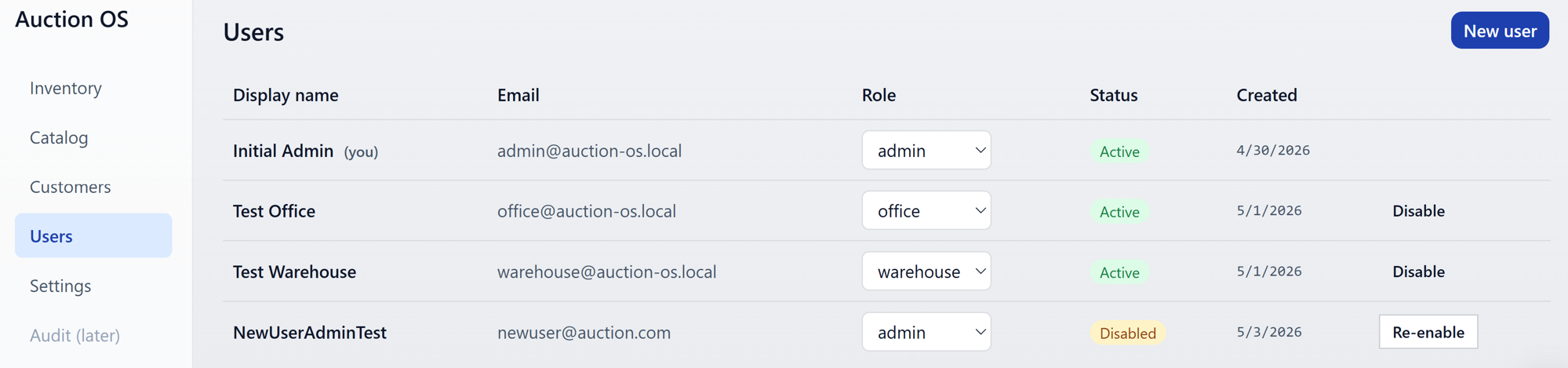
The list shows display name, email, role, status (Active / Disabled), and created date.
Adding a user
Hit Add user.
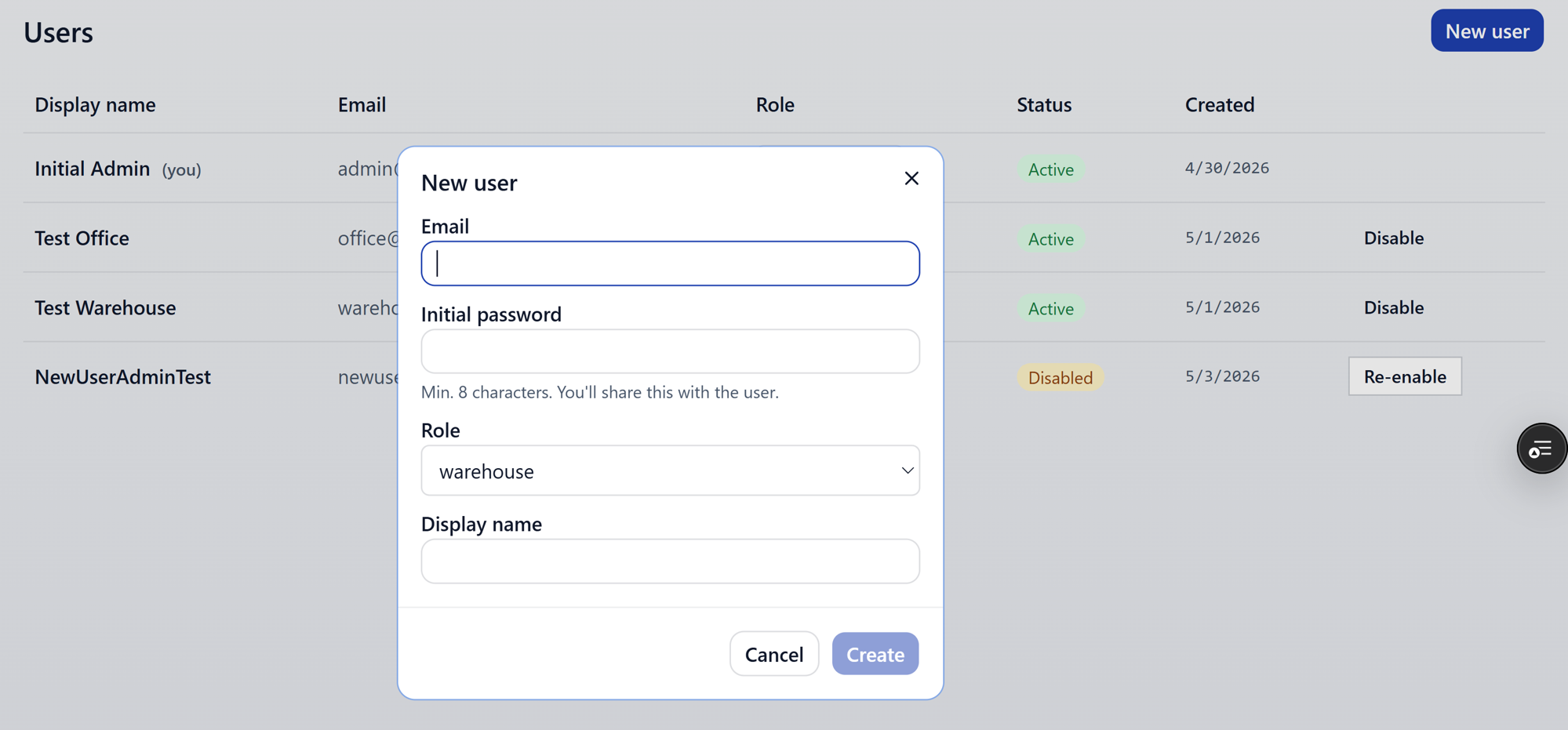
Fields:
- Password — set the initial password here
- Role — Admin / Office / Warehouse
- Display name
After you create the user, a one-time toast displays the password so you can copy and share it with the new user. The toast hangs around for about 30 seconds — copy it before it clears, because the password isn't recoverable from anywhere else in the UI.
Changing a role
Click the role on a user's row to open the inline picker.
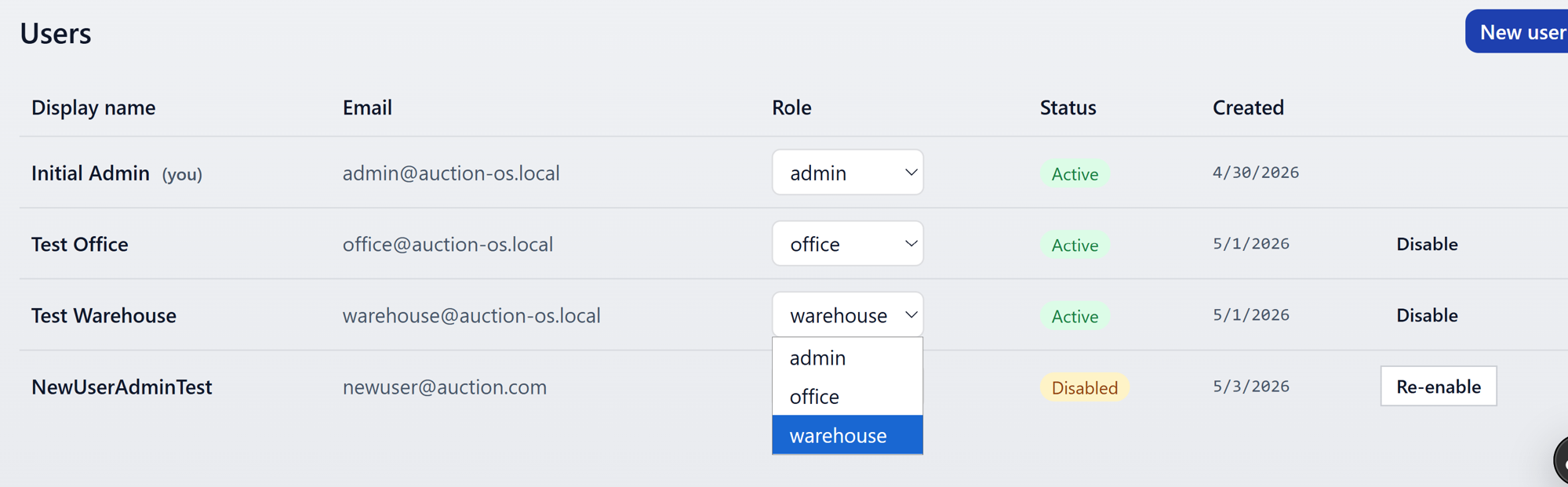
Confirm the change in the prompt that appears.
Disabling a user
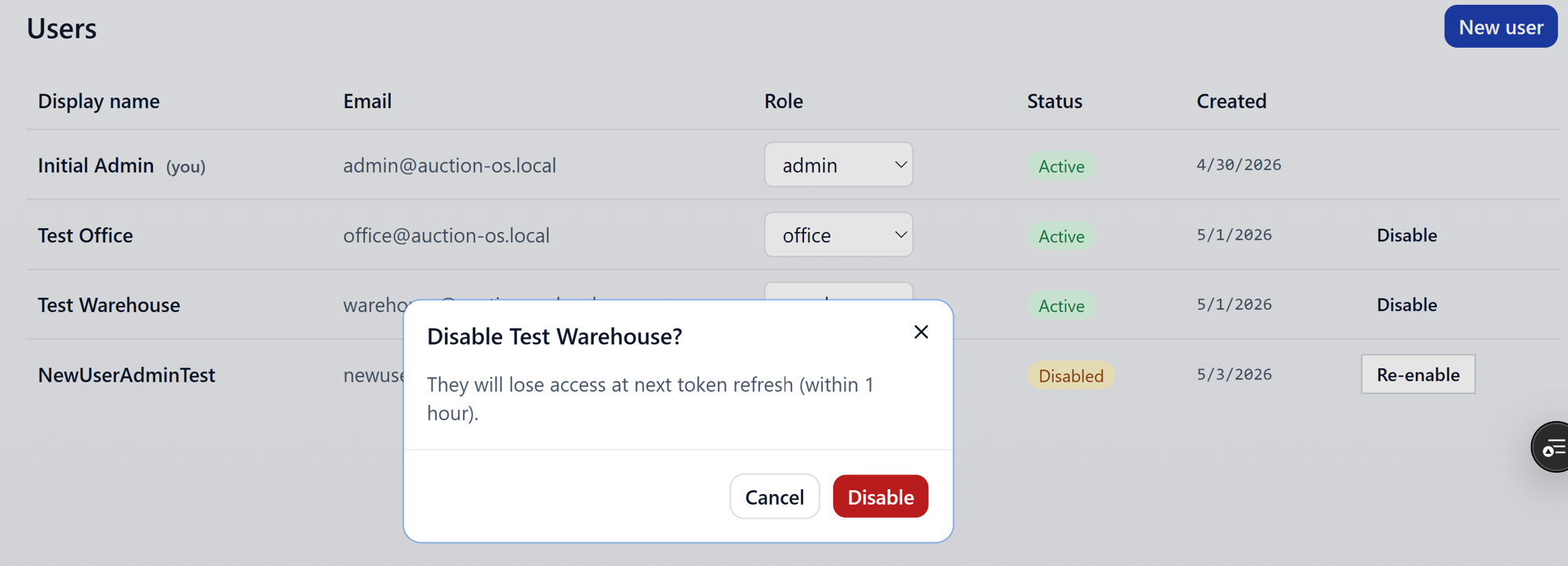
Disabled users can't sign in. They'll see the disabled-account message on the login screen instead. To re-enable, hit the same control — it'll be labelled Re-enable when the user is in the disabled state.
Last-admin protection
You can't disable or demote the only remaining active admin. The system blocks the change with a clear error so you don't accidentally lock the whole organization out.
No hard delete
There's no "delete user" button in v1. Disable is the way to remove someone's access — it preserves their history (who created which lot, who exported what) intact.