Inventory
The desktop-first list of every lot in the system. Search, filter, bulk actions, and the entry point for opening a lot's detail.
The list
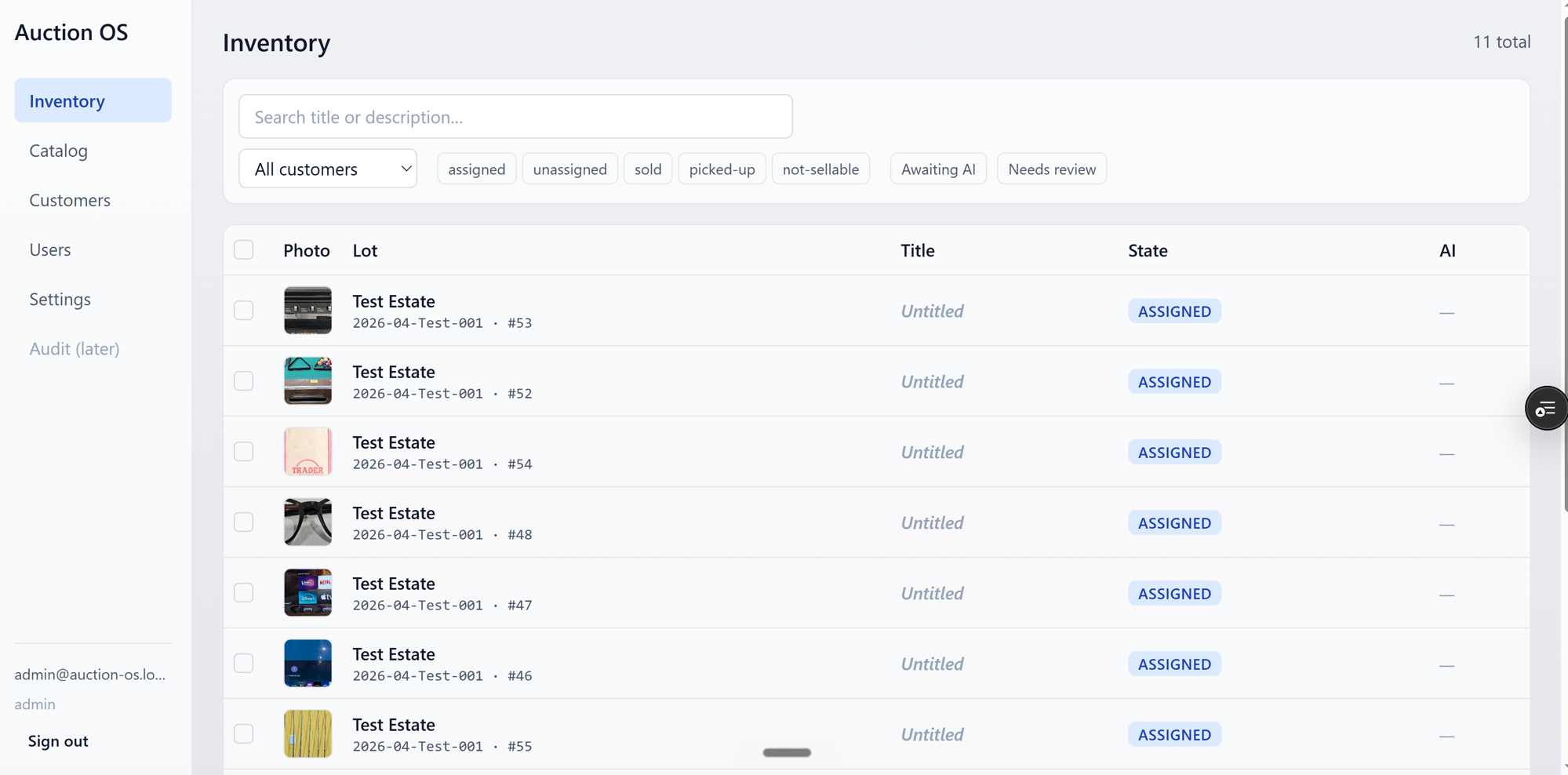
Each row shows a thumbnail, the lot reference (customer + job + lot number), title, state, and AI status. Click a row anywhere to open the lot detail.
The list is infinite-scroll — there are no page numbers. Scroll down and more lots load.
Search
The search box lives in the filter panel and matches against title or description. It's debounced — type, pause for a moment, results update.
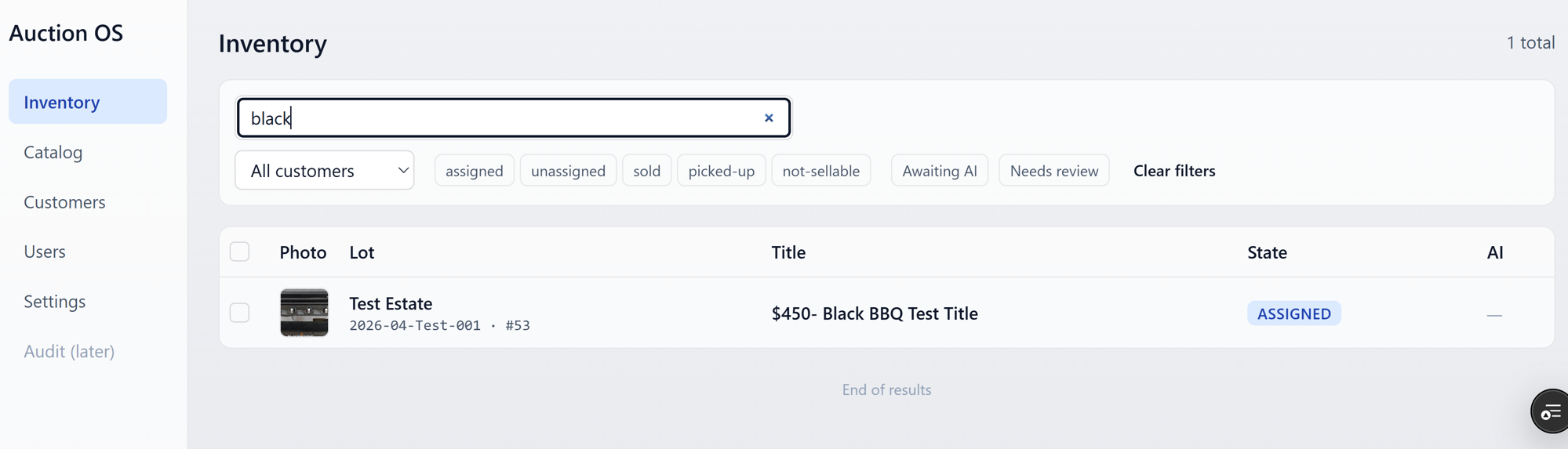
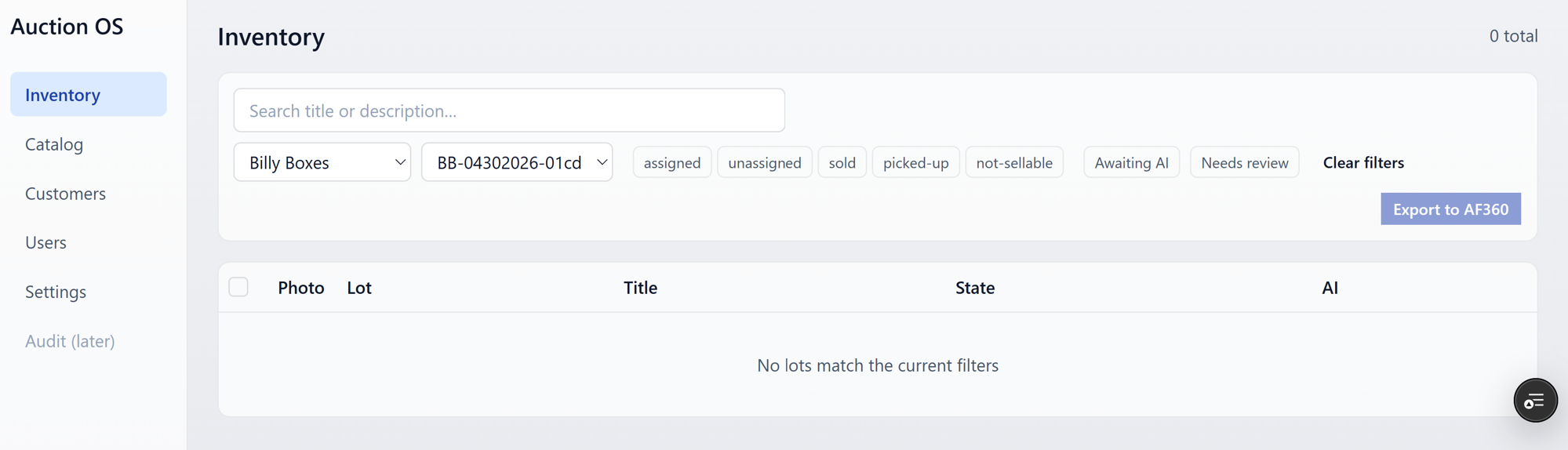
If nothing matches your search or filter combination, you'll see the empty state:
Filters
Open the filter panel (left rail on desktop, sheet on mobile) to narrow the list.
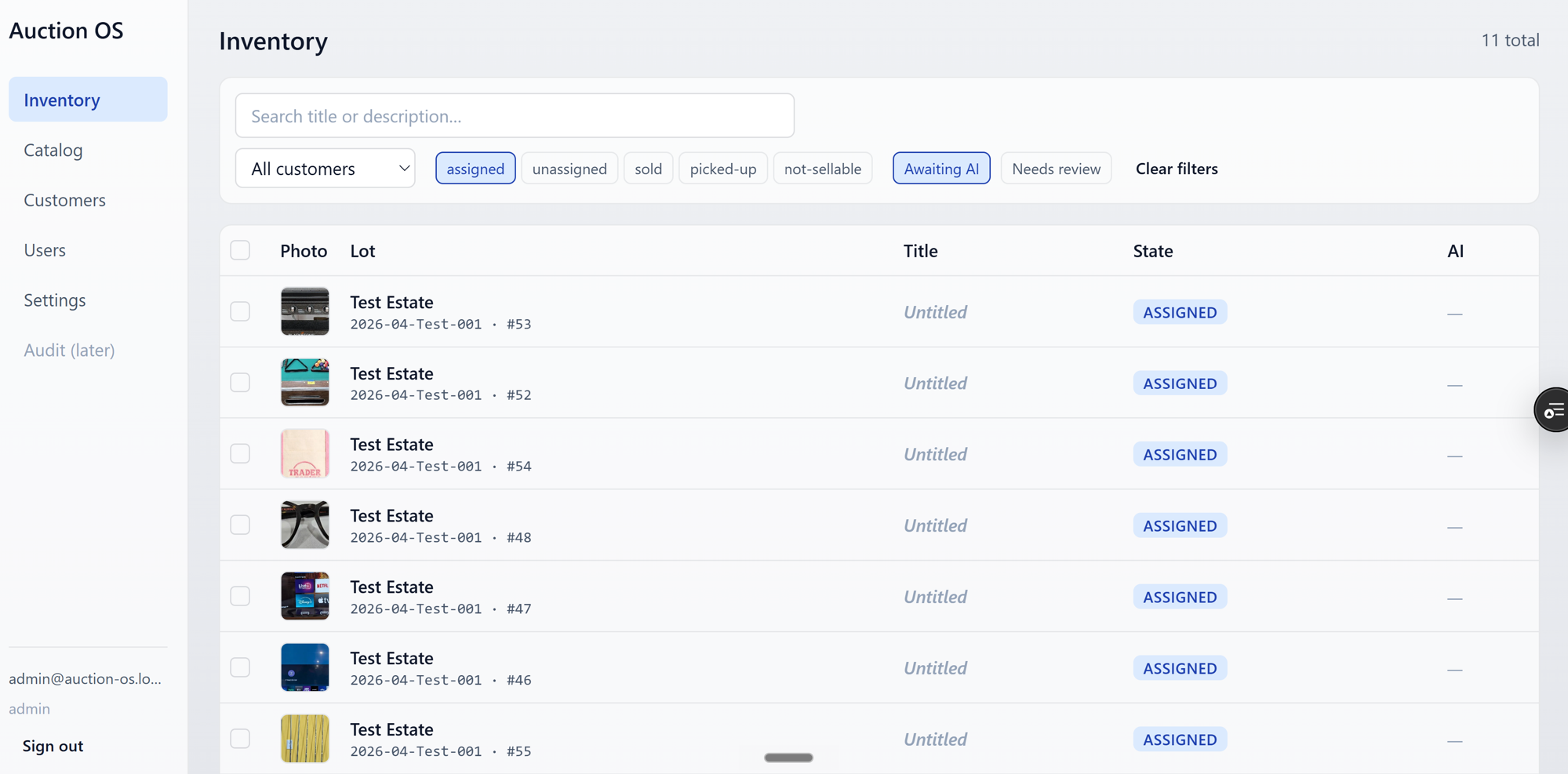
Available filters:
- Customer — single customer
- Job — single job (combine with Customer to drill in)
- State — checkboxes for
assigned,unassigned,sold,picked-up,not-sellable - Awaiting AI — lots that haven't been processed yet
- Needs Review — lots flagged after an AI run
- Reprint Pending — lots with a label reprint queued
Filters stack — applying multiple narrows the list further.
Bulk actions
Admin and Office only. Tick the checkbox on rows to select them; an action bar appears below the table.
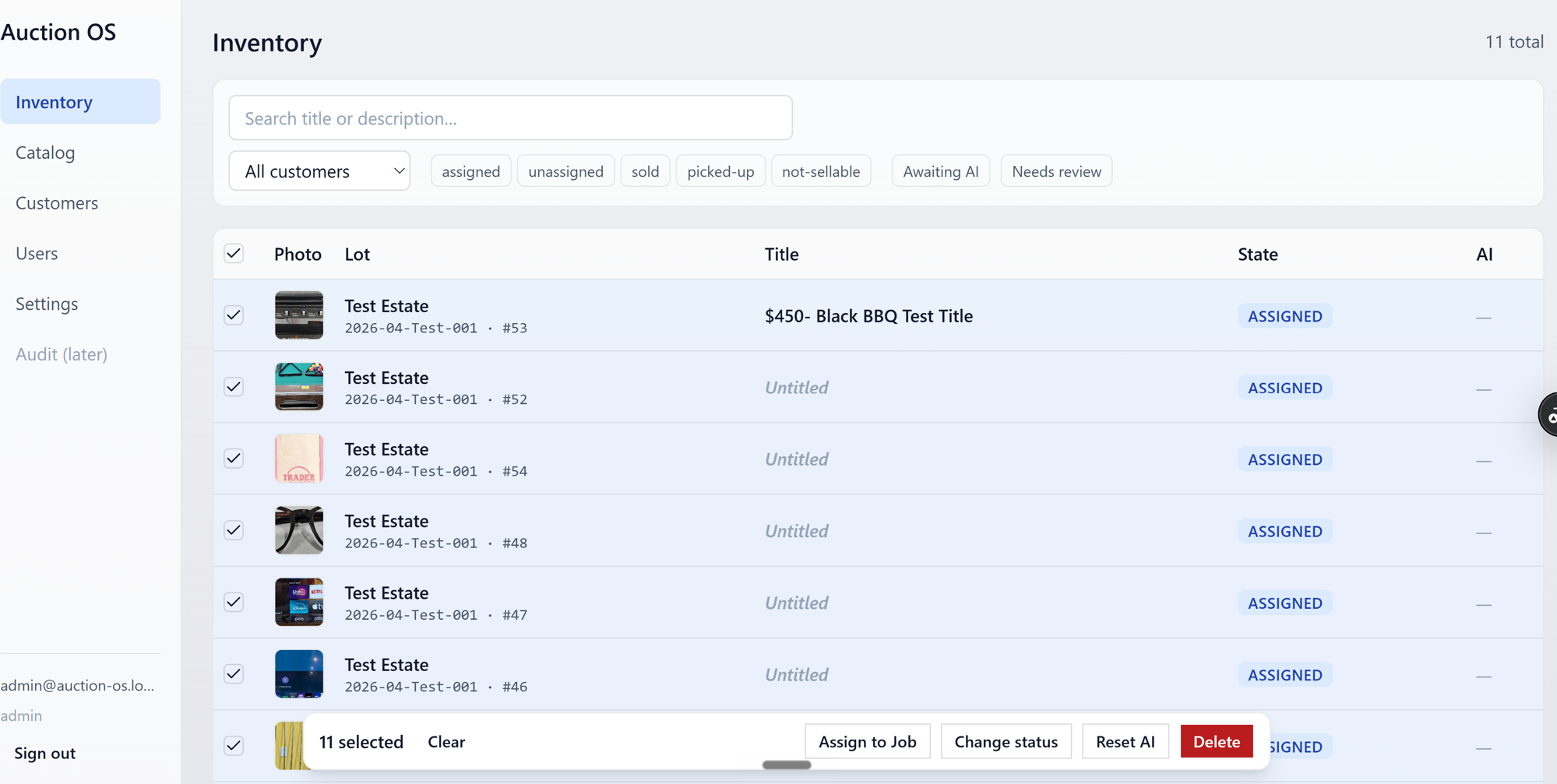
The bar offers:
- Change state — push the selected lots to a new state
- Move — assign the selected lots to a different job
- Reset AI — clear AI output so the next run regenerates
- Delete — admin only
Warehouse users don't see checkboxes or the bulk bar at all.
Export to AF360
When the Job filter is active, an Export button appears in the filter row.
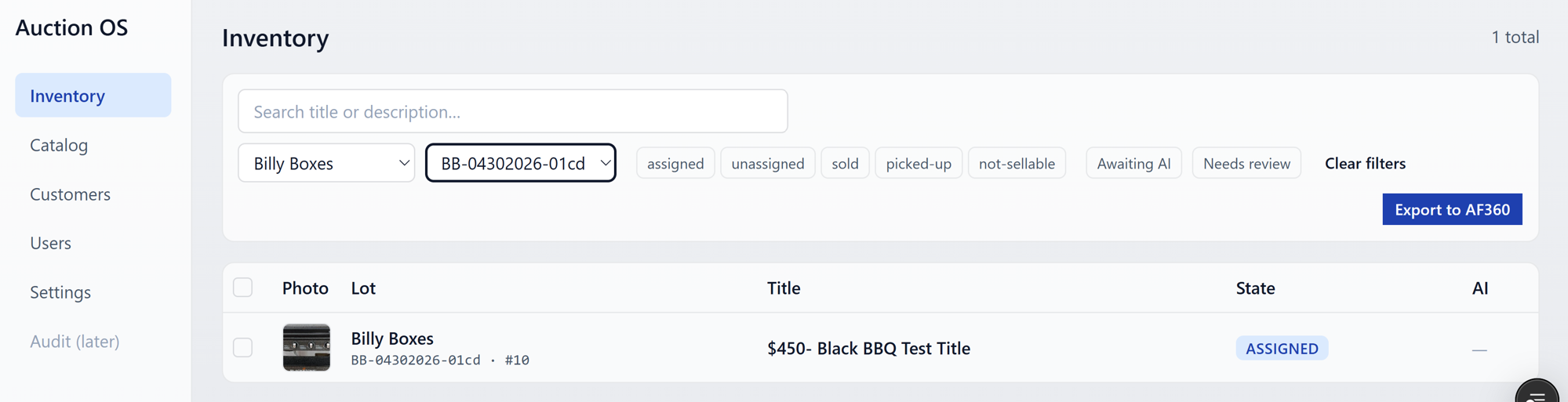
It's the same export pipeline as the per-job button on the customer page — see Export to AF360 for what happens next.
Opening a lot
Click any row to open the lot detail in a modal. The list stays in the background so closing the modal returns you exactly where you were.