Export to AF360 / HiBid
Turns a job's lots into a CSV plus image zip(s) ready to upload to AF360 / HiBid. Available to Admin and Office.
Before you export
- The customer must have a seller code set on their profile. No seller code, no export.
- The job must have at least one lot in an exportable state.
If either is missing, the export will refuse to start with a clear error.
Two ways to start
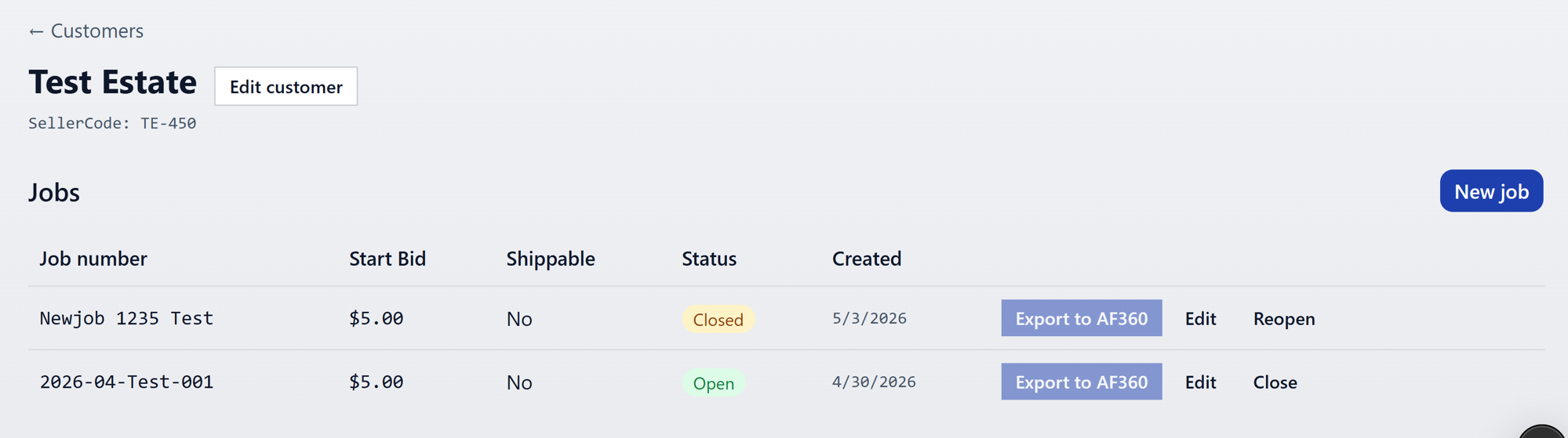
Per-job button — on the customer page, each job row has an Export button.
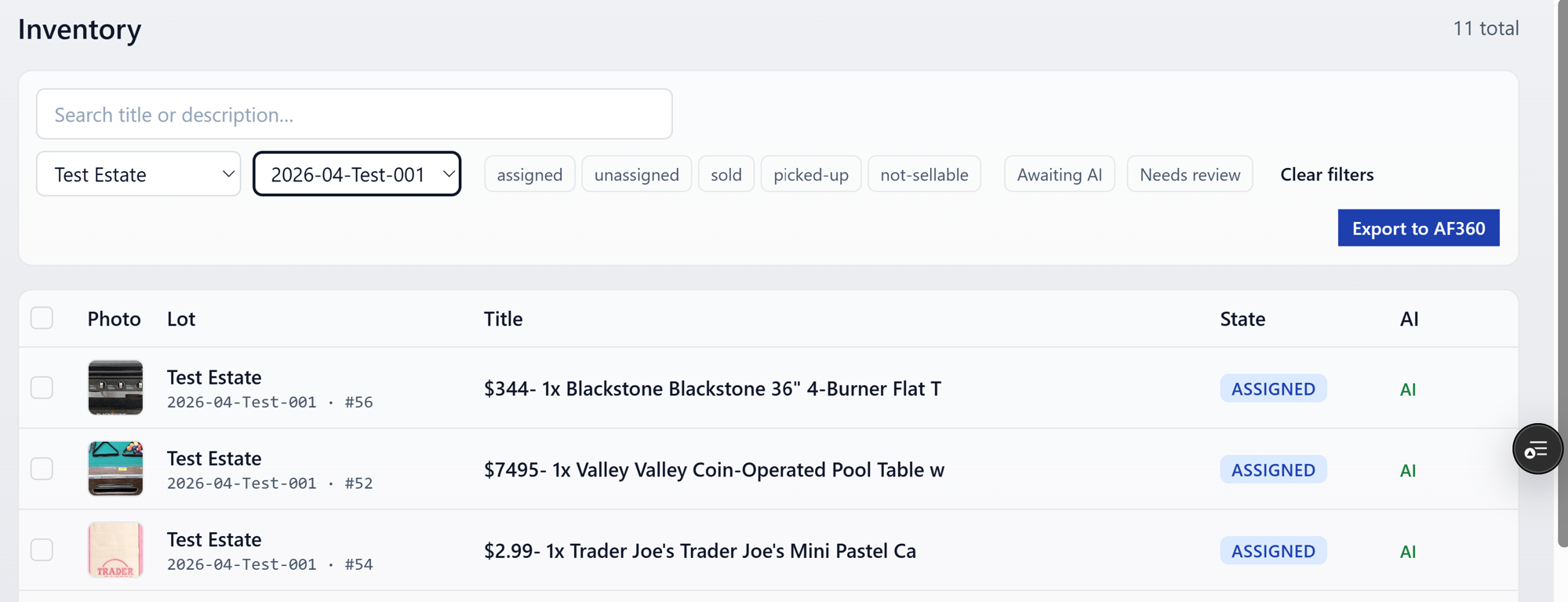
Inventory-level button — when you filter Inventory by a single job, the same button appears in the filter row.
Both go through the exact same pipeline.
What happens after you click
The button walks through these steps in place:
- Preparing export — server pulls the lot data and writes the CSV.
- Building batch N of M — images are bundled into one or more zips. Large jobs produce multiple zips so each download stays manageable.
- Downloading batch N of M — you'll see download links appear as each batch finishes.
Success
When everything finishes, the panel shows the CSV and every zip with a direct download link.

Save them locally, then upload to AF360 / HiBid in their usual flow. The CSV maps to AF360's 7-column lot-import spec; you don't need to massage it before uploading.
Failures
A few errors you might see:
NO_LOTS— the job has no exportable lots. Check the state filter in inventory; lots innot-sellableor already exported states won't be included.SELLER_CODE_REQUIRED— the customer is missing a seller code. Open the customer page, edit, and add it.- Batch error — a single batch can fail mid-zip on a transient blob-storage hiccup. A Retry button appears next to the failed batch; the rest of the download links still work.
If retrying doesn't clear it, contact an admin to check the Vercel Blob store config.
Cleanup
The CSV and zips are stored in temporary blob storage and auto-deleted after 24 hours. Download what you need before then. If you need to re-export later, just hit Export again — it'll regenerate fresh files.