Customers and jobs
Customers (sellers) and the jobs (auctions) that hold their lots. Available to Admin and Office. Warehouse picks customer/job at the start of a catalog session but doesn't see this page.
Customers list
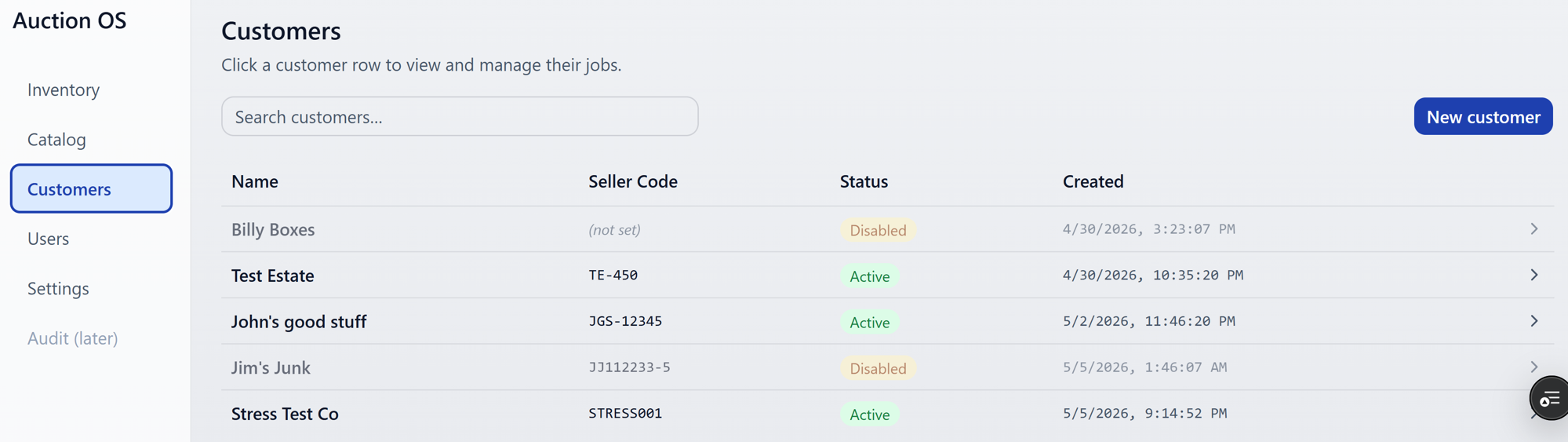
Search by name; the list narrows as you type.
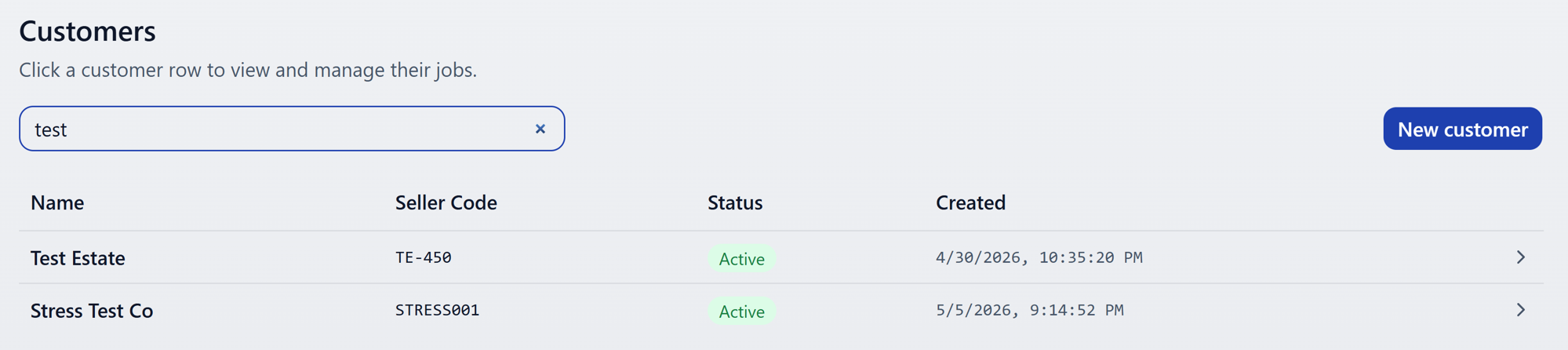
Click a row anywhere to open the customer detail page.
Customer detail
The customer page shows the customer's jobs and an Edit Customer button in the header.
Editing a customer
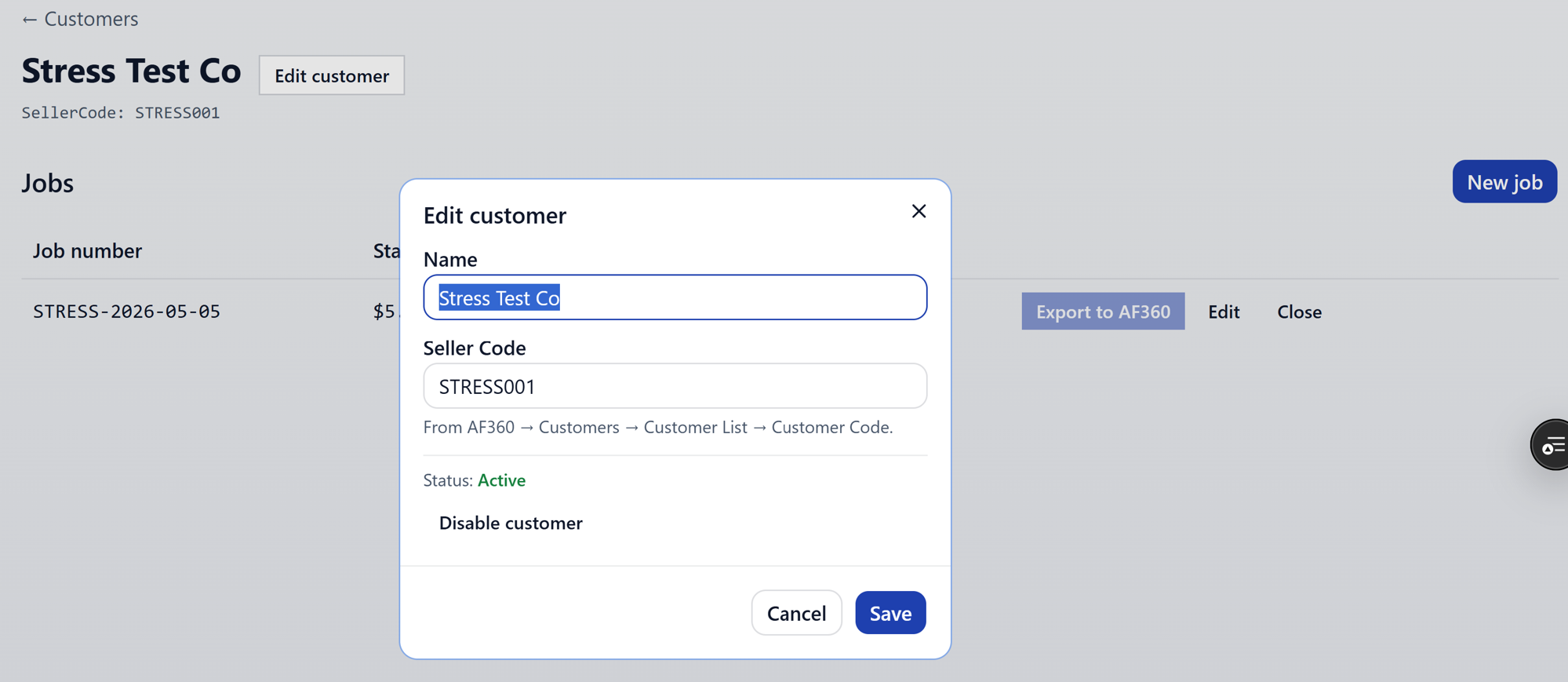
Two fields:
- Name
- Seller Code — required for AF360 / HiBid export. Without it,
exports for any of this customer's jobs will fail with
SELLER_CODE_REQUIRED.
Disabling a customer
Use Disable when a seller is no longer active.
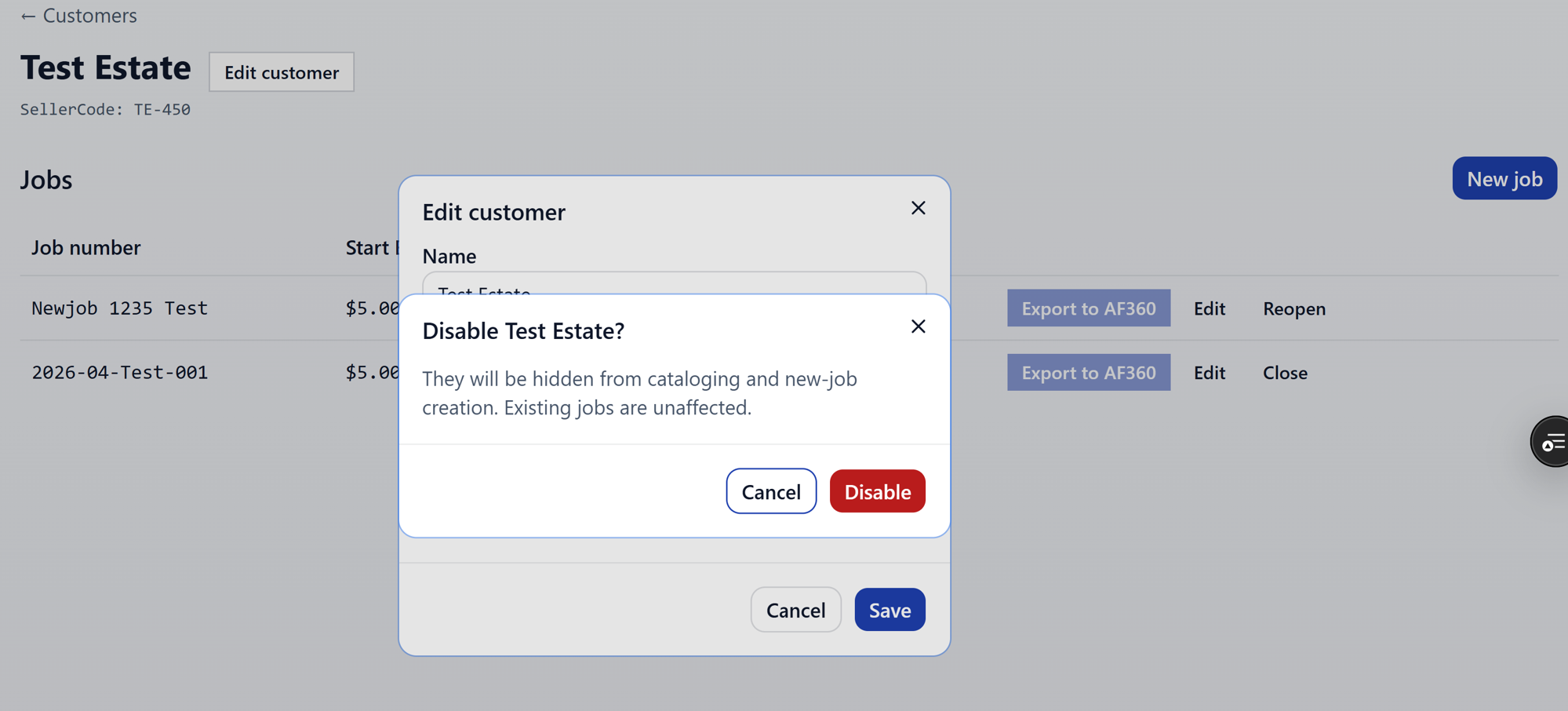
A disabled customer:
- Doesn't appear in the catalog session picker.
- Can't have new jobs created against them.
- Their existing jobs and lots stay visible and editable — disable is a soft state, not a delete.
The page shows a clear disabled banner so you don't forget:
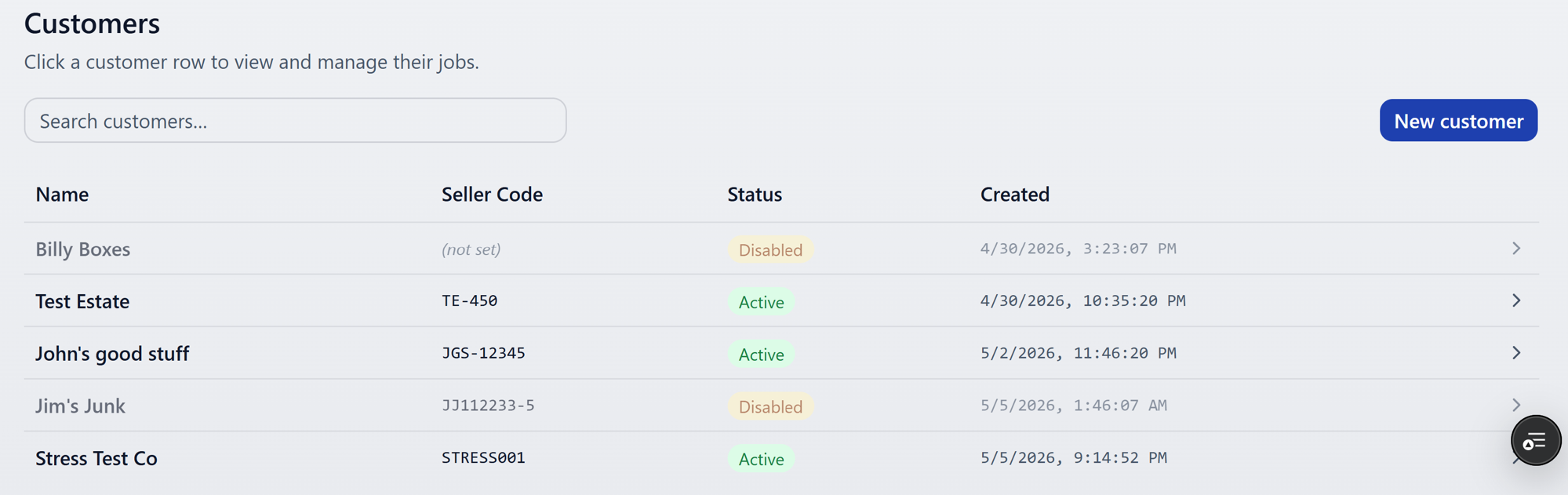
To bring them back, hit Re-enable from the same place.
Jobs
Jobs live under a customer. Each job is one auction.
Creating a job
From the customer page, hit New job.
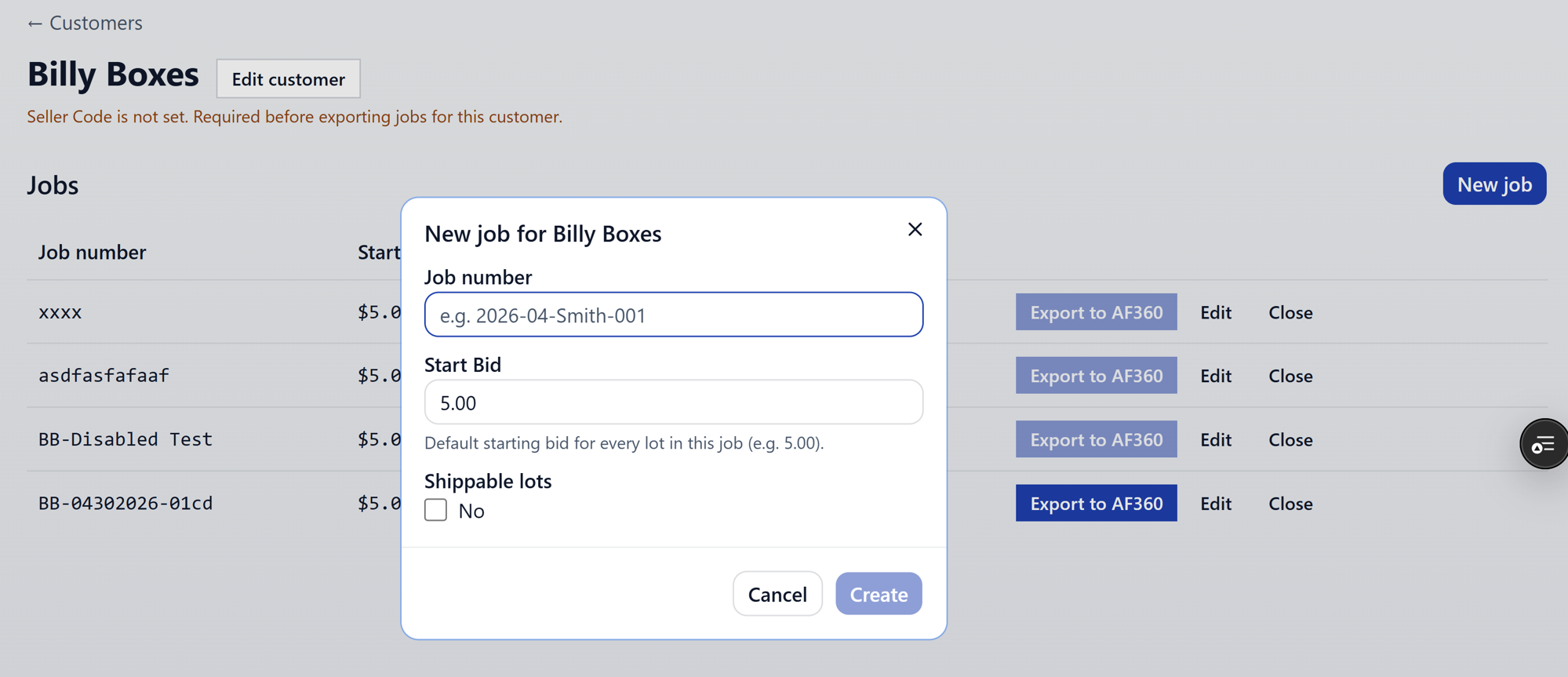
Fields:
- Job Number — your reference for the auction
- Start Bid — default starting bid for lots in the job
- Shippable — checkbox; affects how the auction platform handles the listing
Editing a job
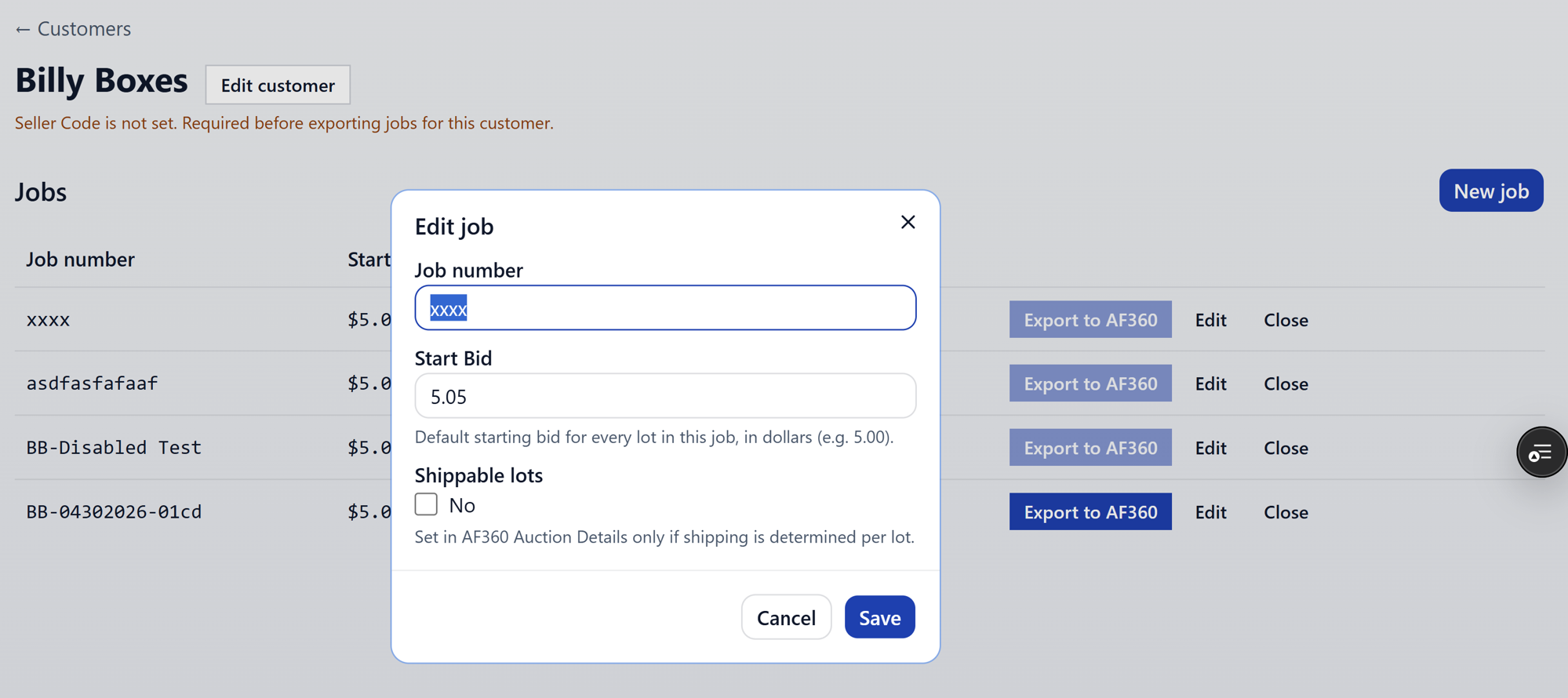
Same fields as create. Edits don't disturb existing lots — they apply going forward and to anything you re-export.
Exporting a job
Each job row has an Export button.
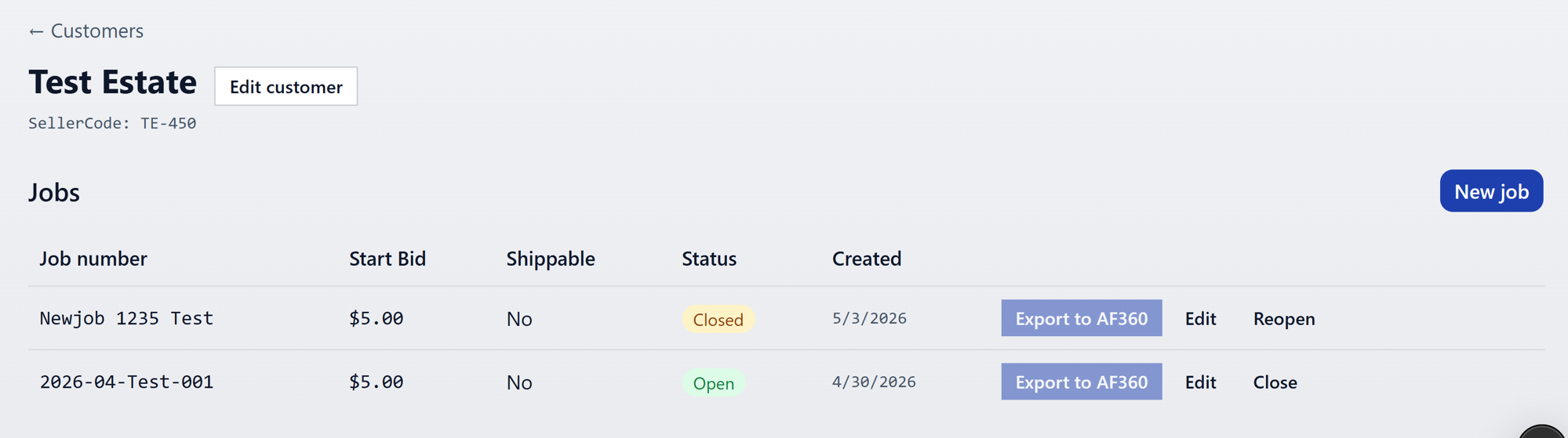
That's the entry point for the AF360 / HiBid pipeline. See Export to AF360 for what happens next.